

Entity Extraction Workflow
|
This guide outlines the step-by-step process for using Entity Extraction.
Step 1: Upload Resources to Collections
To extract entities from digital resources, start by adding digital representations to a collection.
Note: Supported formats include JPG, PNG, TIFF, and textual PDF.
Once the titles are uploaded, you can run the Entity Extraction process.
- Go to Specto > Data Management > Manage Collections.
- In the list of collections, locate the relevant collection that contains digital content.
- Select the More Actions (ellipses) button and select the Digital Metadata Assistant option. This is the Alma Specto homepage.
Step 2: Run Entity Extraction
Once on the Alma Specto homepage for your collection, follow the steps to run entity extraction:
For the best view of the titles and resources in your collection, switch to Gallery view in Specto by selecting the view options in the right-hand corner.
Images
- Select the Entity Extraction button. This process reviews all relevant titles in the collection to identify and differentiate between images (pictures) and documents (containing text).

- The AI extracts faces and objects from the images. The process groups entities by similarity (e.g., all pictures of the same person are in one group).
- At each title level, face entities are visible in the image via a bounding box that highlights the extracted entity in the new Viewer.
Entities are listed on the Viewer's left pane under Entities, allowing users to select and highlight the bounding boxes.
Documents
The purpose of the ALTO file is to enable hit highlighting for document search, where the search term is highlighted directly in the document. This happens in the Specto environment in Alma.
- If none are available, the AI generates a full-text document and a corresponding ALTO for each file.
- The AI extracts names of people, locations and organizations from images.

- The process groups these entities by similarity (e.g., all mentions of the same person are in one group, all mentions of the same city are in another group).
- At the title level, each entity appears in the document under the Viewer Entities pane.
- Selecting an entity highlights the entity's mentions.
- With the generated full-text, search functionality is also available in the Viewer's Search pane and highlights keyword search results in the document.
Objects
- The AI extracts types of objects, scenes, and actions for the entire collection. Access them by selecting the Objects button on the left pane.
- Extracted objects for the collection is presented in a table with the following columns:

- Entity Group – this group encompasses objects of the same type and status. The column also shows the tag name given to objects once they are tagged.
- Type – represents the type of object that was extracted.
- Category – a larger group to which the object belongs.
- Status – showing whether the objects are tagged or untagged.
- Number of Instances – the number of times a specific object appears in the image/collection. An image may contain more than one instance of the same object.
- The objects are grouped by Entity Group and Type.
- You can change the objects tagged in a single group by selecting the More Options button (ellipsis) and selecting Edit.
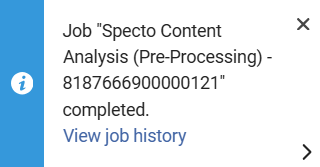
Processing time may vary depending on the size of the collection. The job runs in the background, and you are notified when it is complete. Do not take any further actions during job processing.
The extraction and grouping runs against all titles that have not previously been processed. Titles added to or modified in the collection (e.g., added files) are available for extraction using the Extract Entities action, which indicates the exact population of titles processed.
When choosing to extract, the pop-up:
- Indicates which titles are extracted:
- X titles failed extraction
- X titles pending extraction
- Each row is linkable and leads to the set of titles we recommend addressing before moving to the enrichment phase.
Step 3: Review Extracted Entities
- Once the extraction and grouping process is complete, the entities appear in the left-side panel, under the collection name.
- The Digital Titles section leads to the collection homepage and displays all the titles in the collection.
- Select the type of entity you would like to review:
- Faces – to review the groups of faces detected in the images.
- Text Mentions – to review the people, organizations and locations mentioned in the documents.
- Objects – to review the table of objects detected in the images.

- Within each section, you can select specific groups and review the groupings' accuracy to ensure that all group members are appropriately assigned before tagging.
- For grouped faces and text mentions, if one or more entities in a group are inaccurately associated, select the relevant items and use the Remove from Group bulk functionality to ensure the group is accurate for the next tagging step.

- Object grouping is broader and is further elaborated in tagging with or without linking to authority.
- For grouped faces and text mentions, if one or more entities in a group are inaccurately associated, select the relevant items and use the Remove from Group bulk functionality to ensure the group is accurate for the next tagging step.
- If you do not want to tag a detected entity or entities, you can dismiss the group in one of the following ways:
- On the entity section level, select the More Actions button (ellipses) under the image and select the option to Dismiss Entity.
- Within the entity itself, select the Dismiss Entity function from the left-side panel. Dismissed entities are not removed from the collection, but they are not available for tagging in this collection or marked on individual titles. The grouped entities are marked as Dismissed and can be restored later if necessary.
- For objects, you can dismiss a group by selecting the ellipses at the end of the row in the object table and selecting the Dismiss Entity Group option.
Once you dismiss a group of objects, you can not find them again, unless you rerun the extraction process. Ensure you don’t need the object group before dismissing it. Objects are not counted in the 'Pending tagging' counter and may be left untagged.
Step 4: Tag With or Without Linking to an Authority
Use authority linking whenever possible to ensure consistency and interoperability across cataloging systems, and to support linked data in Primo.
Faces
Once you are ready to tag the entities, select Edit Entity Group or select the item to begin. You can tag:
- With Authority Linking
- Without Authority Linking
Tag with Authority Link
- Select the Search an Authority option in the Entity Tagging box.

- Search the authority database and select the authority you wish to link to. Use filters and facets to narrow your search, and select individual records to view their metadata to ensure accuracy.
- Select the relevant record.

- Select the Tag Entity button on the left panel. This tags ALL titles associated with the extracted entities in the group.
Tag without Authority Link
- Select the Without an Authority option in the Entity Tagging box.

- Enter the name manually in the Name field, meeting your institutional cataloging requirements.
- Select the Tag Entity button. This tags ALL titles associated with the extracted entities in the group.
Use authority linking whenever possible to ensure consistency and interoperability across cataloging systems, and to support linked data in Primo.
Text Mentions
The Text Mentions table includes the following columns:
- Entity: identified name of the grouped entity.
- Tag Suggestion:
- Stars: AI-generated recommendation for an Authority record dentified as appropriate for this entity.
- Lightbulb: user-generated suggestion based on a previously tagged member of this group by a cataloger.
- Entity Type: distinguishes between people, locations and organizations.
- Status: untagged, tagged or dismissed.
- Number of Titles: number of titles in which this entity was mentioned. Note that there may be multiple mentions of the entity within each title.
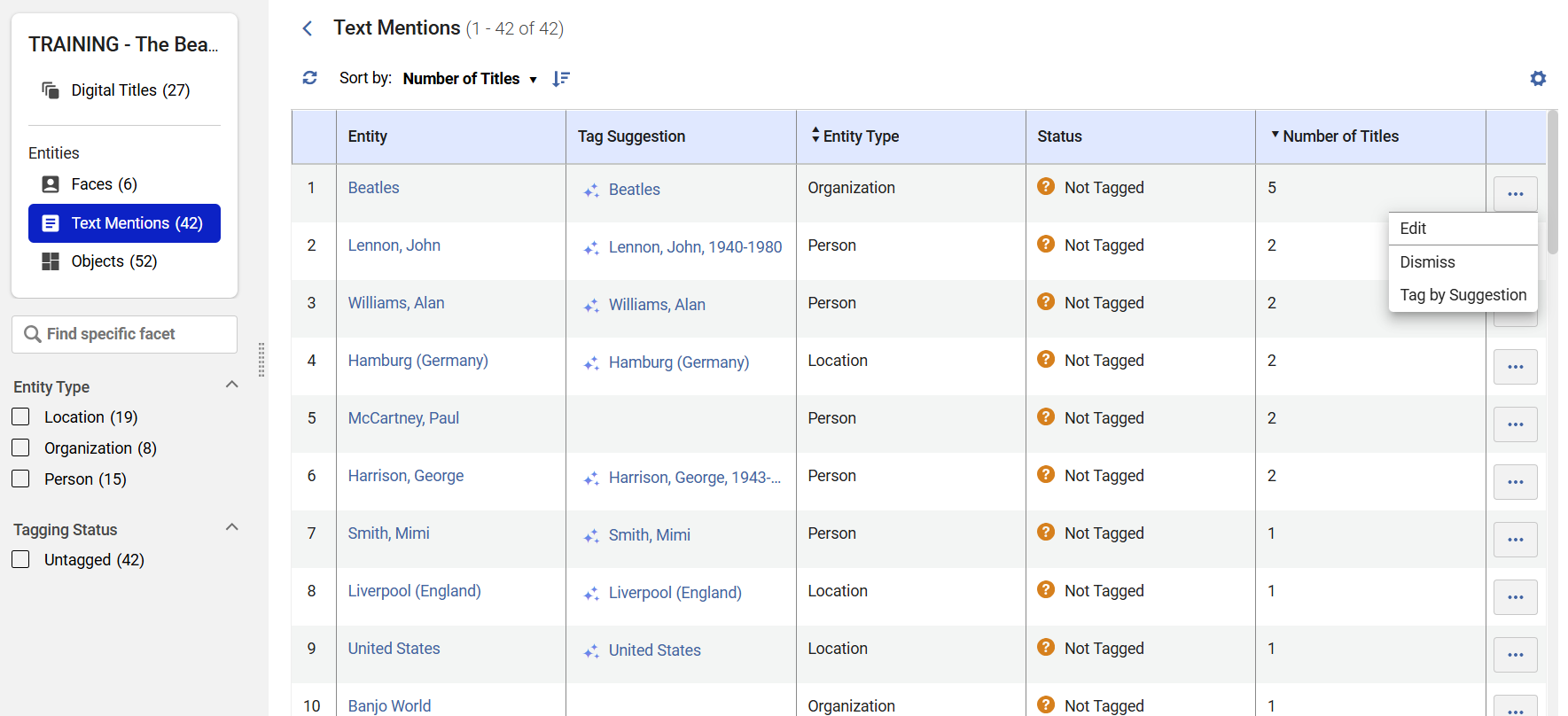
Once you are ready to tag the entities, select Edit or select the item to begin. You can tag:
- With Authority Linking
- Without Authority Linking
Tag With Authority Link
If an AI recommendation or user suggestion is already available, the Name field is pre-populated with the proposed Authority. You may review the record by selecting the View Authority Record to determine if this is the Authority to which you want to link the grouped entity.
- If no recommendations or suggestions are available, select the Search an Authority option in the Entity Tagging box.
- Search the authority database and select the authority you wish to link to. Use filters and facets to narrow your search, and select individual records to view their metadata to ensure accuracy.
- Select the relevant record.

- Select the Tag Entity button on the left panel. This tags ALL titles associated with the extracted entities in the group.

Tag Without Authority Link
- Select the Without an Authority option in the Entity Tagging box.
- Enter the name manually in the Name field below, meeting your institutional cataloging requirements.
- Select the Tag Entity button below. This tags ALL titles associated with the extracted entities in the group.

Objects
- To tag extracted objects, select the object's name in the Entity Group column in the object table or select the ellipses at the end of the table row and select the Edit Entity Group option. A new page opens. On the left side, you see all the appearances of the selected object type in the collection, and on the right side, you have the viewer.

- Choose the object or objects you wish to tag by selecting the checkbox under the title and selecting the Tag Entities button in the upper right side of the screen. Once tagged, the objects are removed from the Objects table and appear in the viewer within the Specto Title window.

Tag with Authority Link
- Select the Search an Authority option in the Entity Group Tagging pop-up.

- Search the authority database and select the authority you wish to link to. Use filters and facets to narrow your search, and select individual records to view their metadata to ensure accuracy.
- Select the relevant record.

- Select the Tag Entity Group button on the left panel. This tags ALL selected entities in the group.
Tag without Authority Link

- Select the Without an Authority option in the Entity Group Tagging box.
- Enter the metadata field number (a three-digit number) in the Field box, and enter the 1st and 2nd indicators according to your institutional cataloging requirements.
Ensure you don’t enter a number of metadata fields that are already predetermined for another purpose.
- Enter the subfield and name in the Field Value box below, meeting your institutional cataloging requirements. (You can enter only a name, but the system applies $$a subfield to the name.)
- Select the Tag Entity Group button below. This tags the selected titles in the group. The tag appears in the metadata under the field you entered with the indicators you chose.