

Known Issues Portal
Welcome to the Known Issues Portal Guide!
Our goal is to save you time and effort. On this page, you can easily identify known issues, track their status, find workarounds, and stay updated with the user community.
To access the Known Issues Portal, go to the Support Center and click the Known Issues tab

The List View
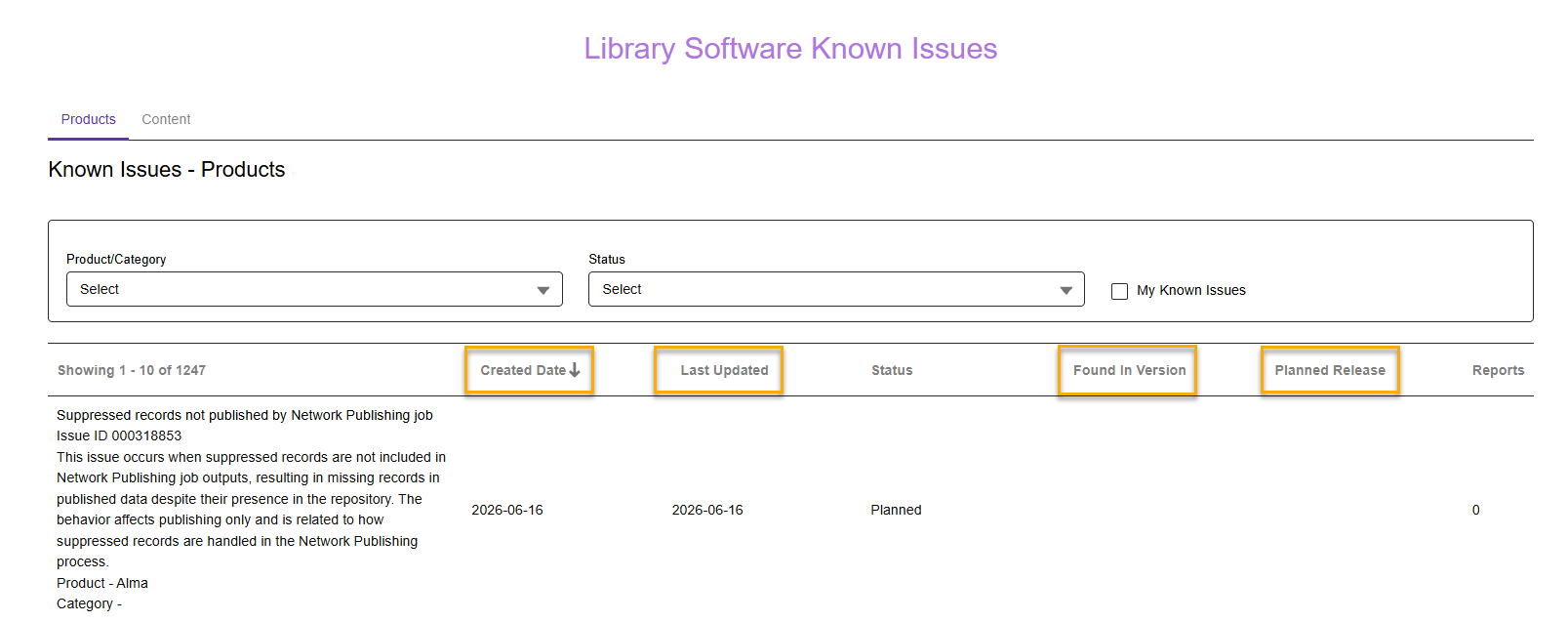
The portal defaults to the Product tab and displays a list of known product issues. Use the Product and Content tabs to toggle between different issue types.

Filters

In the Product/Category filter, each product has its own collapsible list of categories with checkboxes, starting with a product general checkbox. Selecting the general checkbox will check all the category boxes beneath it.

In addition to these filters, the Content tab includes the Provider filter. Start typing a provider’s name to filter results. Note that only providers with active known issues will appear in the results.

Columns
The known issues metadata is organized within the following columns:
-
Found in Version (Product tab only) - indicates the earliest known version in which this issue appeared. Sortable
-
Note this field is only populated for our non-SaaS products, Polaris and Sierra.
-
-
Created Date - Indicates when the known Issue Entry was created. Sortable (Default Sorting).
-
Last Updated - Indicates the most recent time any information in the Known Issue was modified. Sortable.
-
Status - These are the Known Issue statuses and their meaning:
-
Planned - The issue has been confirmed and is recognized as valid. It is planned to be fixed, but has not yet been scheduled for resolution
-
Scheduled - A fix has been planned for a future release; the timeline is defined, but the fix hasn't been implemented yet.
-
Fixed - The issue has been resolved, and the fix is deployed.
-
No Further Action - After evaluation, it was decided not to pursue the issue. This is typically due to a low level of customer impact, competing priorities, or technological/Provider limitations.
-
Pending Provider (Content tab Only) - The issue has been escalated to the provider. Ex Libris is awaiting its input, investigation, or fix
-
-
Planned Release Date - When populated, indicates the version that will include the fix. Sortable
-
Expected Updated date (Content tab only) - Indicates when the next vendor update is expected. Sortable
-
Reports -Indicates how many customers have reported the issue through the Known Issues Portal. While every published issue was initially reported via a support case, these original case reports are not included in the count shown in the portal.

The Full View
Click on a known issue title to open the detailed view. The header repeats key metadata from the list; the body includes a full description of the issue and any additional information.
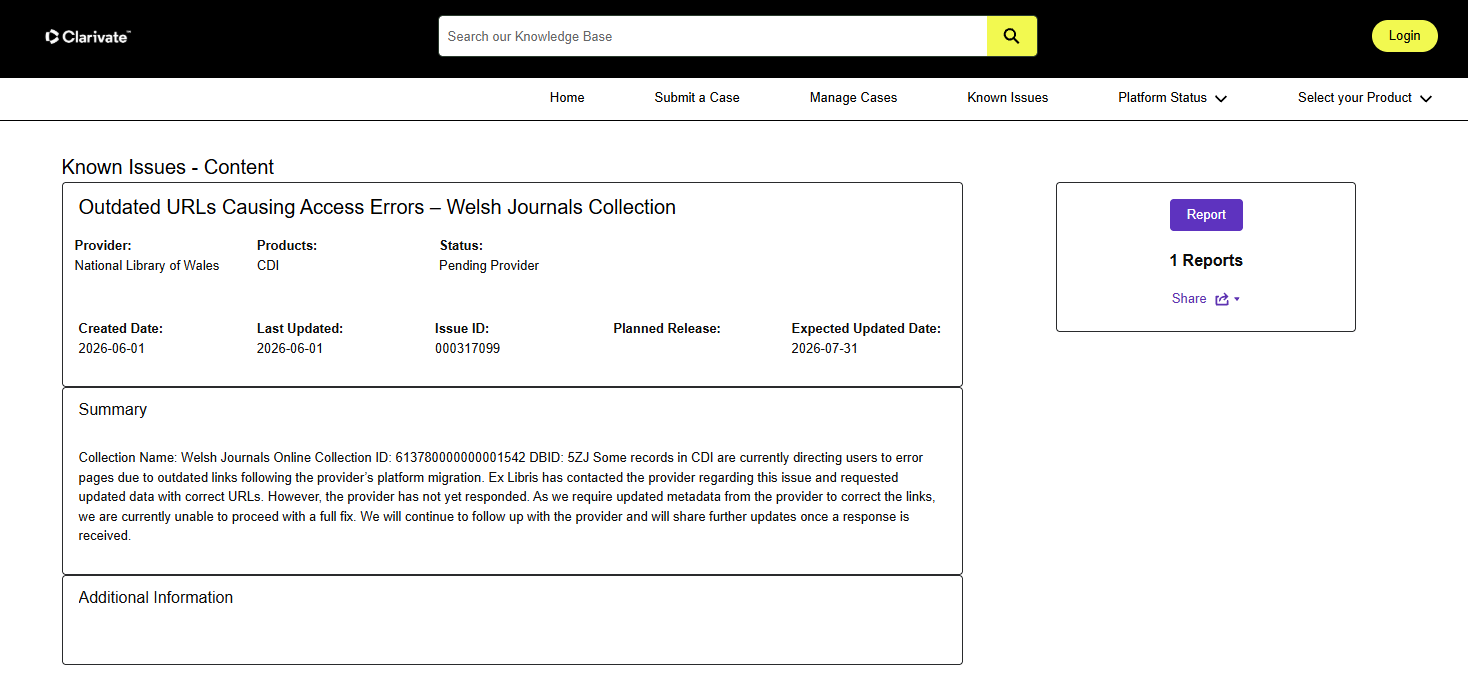
On the right side of the detailed view, click the Report button to indicate that you are experiencing the same issue. You will receive email updates as the issue progresses, and your report will be counted. Note: You must be logged in to report an issue.
- Below the Report button, you'll see how many customers have reported the same issue.
- The Share button generates a shareable link to the detailed issue view.
How to search for Known Issues
You can search for known issues using keywords in the Support Portal’s general search bar.

On the search results page, you may receive multiple results, not all of which are known issues articles. You can filter the results to show Known Issues only in the knowledge section.
If you are logged in, select the “Knowledge” section by clicking either the “Knowledge” title or the Knowledge filter on the left-hand side; If you are not logged in, the Knowledge section is already chosen for you.

In the Refine By panel, filter the results by Article Record Type: Known Issues - Content or Known Issues - Product.

For additional information on the Known Issues Portal and its features, consult the FAQ.
Please submit any feedback about the portal to Known.Issues.Feedback@clarivate.com.
Note that this email is intended for portal-related feedback only. For questions about specific known issues, please submit a support case.
Total views:
8658