

User Customization
This page describes the different ways you can customize the Rialto interface to better support your workflows. These customization settings let users control how information is displayed and organized, so each institution or individual user can tailor Rialto to their needs and preferences.
Customizing the Brief Record View
Brief record views across Rialto display key bibliographic information for titles. The brief view can be customized to control which fields appear at first glance, enabling users to tailor the display to their specific needs.
Customization is available throughout Rialto, although the available options vary depending on the page. Each area of the product contains its own data set and actions, so the fields available for display differ depending on where you are in Rialto.
To customize the brief record view of the page you are currently viewing:
- Select Customize (
 ).
).
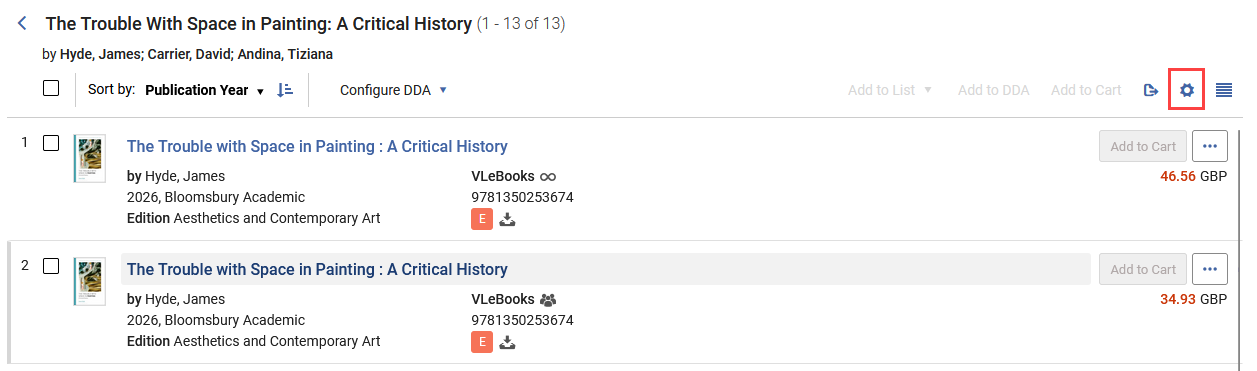 Customize button
 - Choose Records Customization either under User Customization (changes made here apply only to the current user) or Institution Customization (changes made here apply to all users in the institution; available to administrators only).
- The customization interface displays three columns that correspond to the layout of the brief record view: two main columns for bibliographic information and the third Badges and Icons column. Within this interface, users can:
- Show or hide fields by selecting or clearing the checkboxes next to available fields (such as Author, Publication Year, or Edition).
- Control where data appears in the brief view by dragging fields between the first and second columns.
- Change the display order by reordering fields within a column.
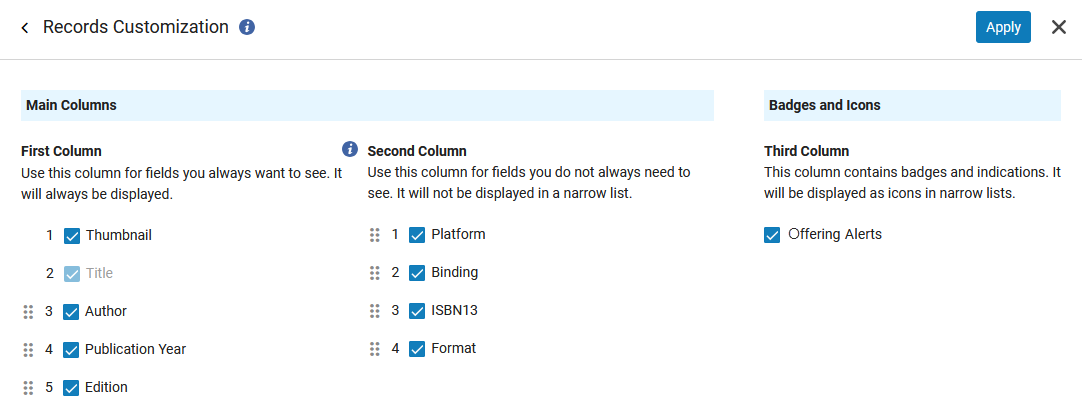 Records Customization - Offer-level options
 - After making changes, select Apply. The brief record view updates immediately without requiring a page refresh.
When the brief view has been customized, the Customize icon displays a green indicator ( ).
).
Currently, certain data points in Rialto cannot be fully customized, and some customizations do not carry over to exports. The following list highlights key restrictions, organized by area:
Work level:
- The badges are not in the third column and can be customized, but are not part of the export.
- In the record customization configuration, Publication Year displays as a range in the interface. In the export, only the most recent publication year will appear.
Offering level:
- In the record customization configuration, the label is Publication Year; however, the relative line in the interface includes the publisher. Export also includes only the publication year and not the publisher.
- In the record customization configuration, the label is Platform; however, the relative line in the interface includes the license. Export also includes only the platform and not the license. This is true for both cart pages and search.
Order History:
- In the record customization, the label is Selector; however, in the interface, this can be a requester/approver/selector component. In the export, only the selector is exported.
- The status and In Claim can be customized, but are not part of the export.
Cart/Approval/Faculty Recommendation
- In the record customization configuration, the label is Location; however, the relative line in the interface includes the fund. Export also includes only the location and not the fund.
Customizing Facets
Users can personalize the facets displayed on each Rialto page to better match their needs. Customizing available facets enables you to refine search criteria, prioritize relevant filters, and streamline content discovery based on your preferences.
- Access any Rialto results page that includes facets. Select the Customize button.
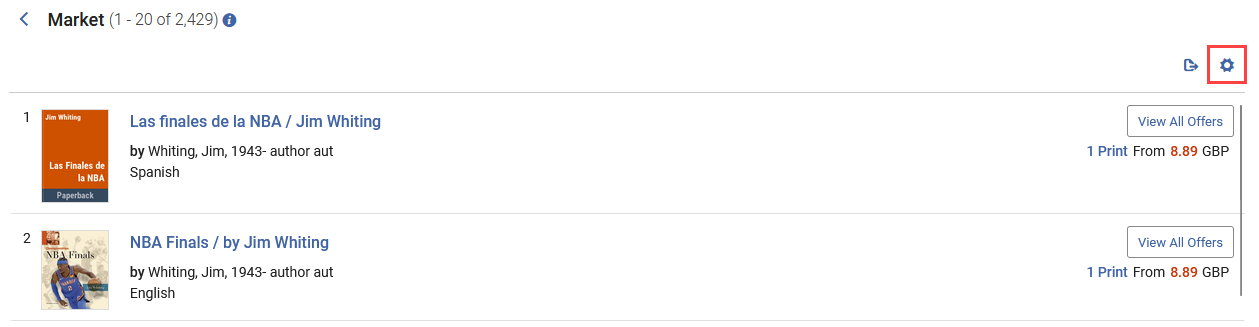 Customize button
A green dot on the Customize icon (
) indicates that the page’s brief view or facets have been customized. This applies to both institution-level and user-level settings. - Choose Facets Customization either under User Customization (changes made here apply only to the current user) or Institution Customization (changes made here apply to all users in the institution; available to administrators only). The Facets Customization pop-out is displayed.
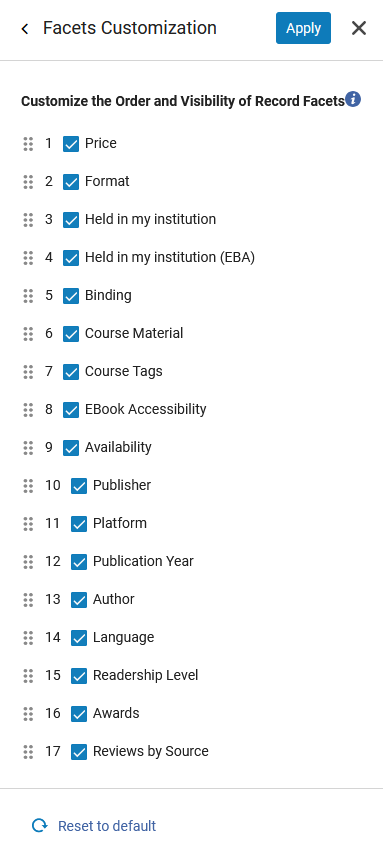 Facets Customization screen
 - Drag and drop a facet to change its order in the Facets list. You can also unselect the checkbox next to a facet box to hide it from display.
- Select Apply to save your changes. To restore the default facet configuration, select Reset to default.