

Exporting Search Results
You can export search results from Rialto to a CSV file. Exported files are useful when sharing data with colleagues or incorporating it into other workflows.
The export includes all records currently displayed in the list on screen. If you apply facets to filter the list before exporting, only the filtered results are included in the CSV file.
For large lists, the export process may take several minutes. You can continue working in Rialto while the file is being generated. You can export up to 100,000 records in a single process; if the list contains more than 100,000 records, only the first 100,000 are exported.
At the top right, select Export to Excel  . You then choose what type of export you want to download:
- Excel (current view) — Downloads a report that includes only the information currently visible on the page. You control what data is visible via Customize (
 ) > Records Customization.
 - Excel (all fields) — Downloads all available metadata, including fields not currently displayed on the page.
Once you choose what to export, a progress box appears at the bottom of the screen.
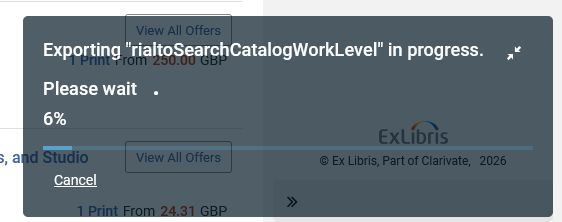
Select  to collapse the progress box, and
  to expand the collapsed progress box.
A notification appears on your screen when the export process is complete, and the export is downloaded automatically. The notification is added to the Real-Time Notifications list. To redownload it, select Download file from the notification or open Real-Time Notifications and select Download file.
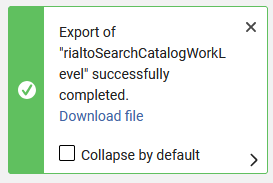

Exported files are added to the Monitor Exports page (Collection Development > Market > Monitor Exports). On this page, you can download or delete exports using the row actions for each file. You can also perform these actions in bulk by selecting the checkboxes next to the relevant files and choosing Download or Delete at the top right of the page.
The Monitor Exports page displays only the export files generated by the user currently logged in to Alma.