

NDE UI Customization - Best Practices
Introduction
Because every library has its own needs and brand, we have implemented a customization framework that enables customers to tap into predefined hooks for each UI component, thus allowing them to customize each element as needed.
To ensure a quality user experience and optimal system performance, we encourage customers to test every change they make for accessibility and responsiveness in their staging environments before uploading any packages to their production environments.
Branding the NDE UI
Primo VE offers many configuration options, some requiring little or no coding or development experience. The following sections describe each of these options.
Watch the User Interface Configuration video (8:15).
Accessibility
It is important to consider accessibility when customizing the NDE. Refer to the Customization Accessibility Guidelines for common concerns as you tailor the UI to your needs.
Selecting a Color Theme
You can quickly change the color theme of your view without creating a customization package. Our color schemes affect many elements in the NDE UI and adhere to the accessibility guidelines for color and contrast. If you want to make a small change to a color scheme, see Customizing a Color Theme.
-
Open the Manage Customization Package tab.
-
In the Color Theme - New UI section, select a color icon. Purple is the default color.
 Color Theme Selection
 -
Select Save.
Adding a Clickable Link for the Logo
The General tab on the View Configuration page (Configuration > Discovery > Display Configuration > Configure Views) enables you to specify a link that opens a page when users click the logo. If no URL is configured, the Discovery home page is displayed when a user clicks the logo.
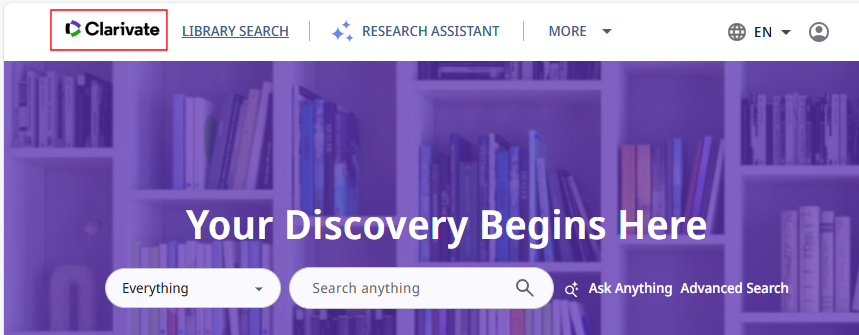
For information on how to customize your view's logo, see Customizing Image Files.
-
Edit your view on the View Configuration page (Configuration > Discovery > Display Configuration > Configure Views).
-
Select the General tab.
-
Specify the redirection URL in the Logo Clickable URL field.
-
Select Save to save changes to the customization package.
Updating Page Titles
The Header/Footer Tiles Labels code table (Configuration > Discovery > Display Configuration > Labels) enables you to customize the following titles in the NDE UI:
- main.title — Ex Libris Discovery
- nui.brief.title — Ex Libris Discovery - {{query}}
- main.description — Primo by Ex Libris
- nui.full.display.title — {{recordTitle}} - {{institutionName}}
Using the Customization Package Manager
The Manage Customization Package tab lets you upload and manage customization packages, enabling you to brand and customize Primo VE. If no packages are loaded, the system uses the out-of-the-box configurations. If you are transitioning a view from the original UI, the view's customization package will not carry forward to your NDE view. You must download a new customization package template and add customizations to a new package for the NDE UI.
For details on how to upload/download a customization package, see Manage Customization Package Tab.
-
Database files (.db) are not permitted in your customization package. If the following error occurs while uploading your ZIP file, remove all .db files:
Validation error: File type db is not allowed in the zip file -
Set Windows to display hidden files if you cannot see any .db files in your customization package folder.
-
The system does not use content inside <script> tags.
Understanding the File Structure of a Customization Package
Your customization package must be structured as follows to ensure that it integrates properly with Primo VE:
<View_Code> – The top folder of your customization package. Ensure that you change the name of the top folder to your institution's view code, which must be in the following format: <institution_code>-<view_code>. This folder must include the following subfolders:
-
assets – All of the NDE customization is done within the following subfolders:
-
css – This folder contains the custom.css file, which includes your formatting rules for the NDE UI (except for the Landing Page). These rules override corresponding rules in the default CSS.
-
header-footer – By adding the header.html and footer.html files, you can customize the header and footer of your view, respectively. For more information, see Adding Headers and Footers.
-
homepage – This folder enables you to customize the Landing Page by adding its HTML, CSS, and background image. By default, it includes the following templates: homepage_en.html.tmpl and homepage.css.tmpl. For more information, see Customizing the Landing Page.
-
icons – This subfolder enables you to customize various icons in the NDE UI, including the favicon.ico. By default, it includes only the custom_icons.svg file. For more information, see Customizing Icons.
-
images – This subfolder enables you to customize images for the NDE UI, such as your library logo (library-logo.png) and resource type icons (icon_<resource_type_code>.png). By default, it includes only the library-logo.png file. For more information, see Customizing Image Files.
-
js – This subfolder contains the custom.js file, where you can place JavaScript code that should run when the NDE UI loads. This file is used differently by NDE than it is used by the original UI and is no longer used to add custom Angular components hooked to a specific component. To implement that configuration, see Advanced Customization Capabilities and External Add-Ons for the NDE UI, below.
-
Creating and Deploying a Customization Package
The Manage Customization Package tab downloads/uploads the customization package between the Primo VE server and your local machine. Before you update an existing customization package, it is recommended that you download it from the server to ensure you are using the latest version. If you are creating a customization package, we recommend downloading the template.
For more information, see Managing Customization Packages.
-
Edit your view on the Views List page (Configuration > Discovery > Display Configuration > Configure Views).
-
Select the Manage Customization Package tab.
 Manage Customization Package Tab for the NDE UI
 -
If this is the first time, download the template package in the Download Package section. Otherwise, download the current package to ensure you use the latest version.
-
Unzip the file.
-
Ensure that the top folder of your package's zip file is the <View_Code> folder, which must have the following format: <institution_code>-<view_code>—for example, PRMO_OAP_INST-Alma.
-
Customize the configuration files and folders associated with your Landing Page, images, and CSS as needed. You must retain the file structure and names of files that you are overriding. For more information, refer to the remaining sections in this document.
-
Zip the <View_Code> folder.
For Windows users, we recommend using a compression tool such as 7zip or Winrar instead of Windows Send to > Compress folder to avoid upload errors.
For Mac users, use the following procedure to zip and remove any hidden .DS_Store files:
-
Open the Terminal application under Applications > Utilities.
-
Move to the parent directory of the folder that you want to compress. For example:
cd /Users/<user name>/<parent folder> -
Enter the following command to compress the file:
zip –r <target file>.zip <My_View> -x "*.DS_Store"
-
-
Specify the name of the zipped package and click Upload in the Upload Package section.
-
Select Save to deploy the changes.
-
Refresh your view in the Web browser and test your changes before uploading them to the production server.
Customizing the Landing Page
The Landing Page is the entry point for library discovery and typically includes an empty search box.

Institutions are encouraged to add or customize the following elements of the page:
-
Quick access links, such as library hours
-
A welcome message and search tips
-
The landing page background image — The image width is 100% of the screen size width. The image height depends on the screen size range.
For information about the colored overlay applied to the image by default, see Disabling the Background-Image Overlay, below. -
The text of the banner (see Modifying the Banner)
At present, customization of the homepage content and styles must be done using the customization package, as explained under Customizing the Homepage Content and Styles. In the 2026 roadmap, as part of a CERV enhancement, configuration options will be added that enable you to modify the announcement, quick links, and welcome message directly in Alma, so that it will only be necessary to use the customization package to implement broader-ranging modifications.
Customizing the Homepage Content and Styles
The homepage folder in your customization package includes the following files to customize the content and styles for the Landing Page:
-
homepage_en.html.tmpl – This is the template for the Landing page's HTML file. By editing it and removing its .tmpl suffix, you can customize the area below the search box on the Landing Page. To support other languages, you can create and upload new HTML files with the relevant language code—for example, homepage_fr.html.
-
homepage.css.tmpl – This is the template for the Landing Page's CSS file. By editing it and removing its .tmpl suffix, you can customize the formatting for the Landing Page.
-
homepage_background.svg – This SVG file configures the Landing page's background image. The package does not include a template.
By modifying these files, you can customize the layout and contents of the Landing page as you wish. You can even completely replace the default layout with a layout of your own creation. Any code you add to the homepage_xx.html and the homepage.css files supersedes the default coding of those elements, but has no effect on the other elements of the page. You can change as much or as little of the default page coding as you choose.
In the following example, the background image and the text in the "About the Library" section were updated, but nothing else was changed:
-
Create the homepage_en.html file with the changes to the "About the Library" section (see attached HTML file):
<!DOCTYPE html>
</div>
<html lang="en">
<head>
<base href="/">
<meta charset="UTF-8">
<meta content="width=device-width, initial-scale=1.0" name="viewport">
<title>Library Page</title>
<link href="./homepage.css" rel="stylesheet">
</head>
<body>
<main class="main-landing-page display-flex flex-column flex-layout-center-center">
<div class="menu-container width-100">
<ul role="list" class="menu width-100">
<li role="listitem">
<a id="Opening_hours_link" href="https://clarivate.com/" aria-label="Opening hours" role="link">
<div class="icon display-flex">
<img alt="" src="assets/images/homePageImages/clock.svg">
</div>
<span>Opening hours</span>
</a>
</li>
<li role="listitem">
<a id="FAQ_link" aria-label="FAQ" role="link">
<div class="icon display-flex">
<img alt="" src="assets/images/homePageImages/search.svg">
</div>
<span>FAQ</span>
</a>
</li>
<li role="listitem">
<a id="Ask_a_librarian_link" aria-label="Ask a librarian" role="link">
<div class="icon display-flex">
<img alt="" src="assets/images/homePageImages/book.svg">
</div>
<span>Ask a librarian</span>
</a>
</li>
<li role="listitem">
<a id="Search_tips_link" aria-label="Search tips" role="link">
<div class="icon display-flex">
<img alt="" src="assets/images/homePageImages/comp_search.svg">
</div>
<span>Search tips</span>
</a>
</li>
<li role="listitem">
<a id="Study_room_link" aria-label="Study room" role="link">
<div class="icon display-flex">
<img alt="" src="assets/images/homePageImages/book.svg">
</div>
<span>Study room</span>
</a>
</li>
</ul><div class="flex-row flex-layout-space-between width-100 welcome-announcements-container">
<div class="welcome display-flex flex-column flex-layout-start">
<h2 aria-level="2" role="heading" class="welcome-title mat-headline-medium ">Welcome to the library</h2>
<span class="welcome-content">Access your account by signing in and enabling more capabilities</span>
<a id="myLibraryCard" tabindex="0" aria-label="Go to my library card" role="link">Go to my library card</a>
</div>
<div class="announcements display-flex flex-column">
<header class="flex-column gap-1">
<h2 class="mat-title-medium" role="heading" aria-level="2">Announcements:</h2>
<h3 role="heading" aria-level="3" class="announcements-item-title mat-headline-medium">New library resources</h3>
</header>
<article>
<p class="mat-body-large">Lorem ipsum dolor sit amet consectetur. Varius ipsum amet elit convallis. Egestas arcu volutpat morbi urna
cursus amet.</p>
</article></div>
</div><div class="about display-flex width-100">
<div class="about-content flex-row">
<div class="about-text flex-column flex-space-between ">
<h2 role="heading" aria-level="2" class="about-text-title mat-headline-large">Customized Landing Page </h2>
<p class="about-text-description">
Please make sure to custom your text here as this is a demo customization example .</p>
<div class="help-sign-in-container flex-column gap-05">
<span>Primo also helps you manage your research. Sign in to:</span>
<ul role="list">
<li role="listitem">
<img alt="Library image" src="assets/images/homePageImages/success.svg">
<span> Reserve and renew books</span>
</li>
<li role="listitem">
<img alt="Library image" src="assets/images/homePageImages/success.svg">
<span> Create favorites lists</span></li>
<li role="listitem">
<img alt="Library image" src="assets/images/homePageImages/success.svg">
<span> Reserve and renew books</span></li>
<li role="listitem">
<img alt="Library image" src="assets/images/homePageImages/success.svg">
<span> View full search results</span></li>
</ul>
</div>
</div>
<div class="about-image flex-layout-center-center">
<img alt="" src="assets/images/homePageImages/about_image.svg">
</div>
</div>
</div>
</main>
</main>
</body>
</html> -
Create the homepage_background.svg Landing page's background file with the new background image (see attached SVG file).
-
Since no CSS was added for this example, the default formatting for the Landing Page is used.
-
Zip and upload your updated customization package in the Manage Customization Package tab for your view.
If you choose to use our home‑page HTML structure, be sure to give each Quick Access link an href attribute pointing to your own resources
After the deployment, the customized Landing page in this example appears as follows:

Modifying the Banner
By default, the text of the banner is Your Discovery Begins Here. This can be customized in the Search Tile Labels code table (Configuration > Discovery > Display Configuration > Labels), by modifying the Description of the nde.landing.header code.
Out-of-the-box, we recommend maintaining the following image properties:
- Rendered size: 1280 x 320 px
- Rendered aspect ratio: 4:1
- File size: 485 KB
Disabling the Background-Image Overlay
By default, the background image of the Landing Page is displayed with a transparent colored overlay. This overlay ensures text and buttons remain readable across all images. The overlay matches the color of the view's theme.

The overlay level can be removed by adding the following rule to the view's custom.css file:
.custom-search-bar-container .background-overlay {
display: none;
}

Adding Headers and Footers
Headers and footers are areas at the top and bottom of the NDE UI. You can display common information on all pages in the UI in these areas if added to the following files in your customization package: header.html and footer.html. If you support languages other than English, use the following format to include the language's two-digit code in the file name: header_<language_code>.html and footer_<language_code>.html.
For example, add the following code to the footer.html file to display links for your institution's privacy policy, accessibility statement, and Terms of Use:
<!DOCTYPE html>
<footer style="text-align: center; padding: 1em; background-color: #f2f2f2; font-size: 0.9em;">
<p>
<a href="/privacy-policy.html" target="_blank">Privacy Policy</a> |
<a href="/accessibility-statement.html" target="_blank">Accessibility Statement</a> |
<a href="/terms-of-use.html" target="_blank">Terms of Use</a>
</p>
<p>© 2025 Your Library Name</p>
</footer>
When deployed, the footer appears at the bottom of the UI:

Customizing a Color Theme
If you have selected one of our out-of-the-box color themes but require minor changes to match your brand, you can modify specific variables (such as --sys-primary) with your customization package.
The NDE UI uses a theme palette defined by the standards in Angular Material to help ensure accessibility through proper color contrast, visible focus indicators, and consistent styling. Based on Material Design and WCAG guidelines, the palette uses semantic roles like primary and accent, making the interface more usable and compliant by default. Altering these attributes is not recommended. Instead, it is recommended that you create a custom color theme. For more information, see Creating Your Own Color Theme on Github.
-
Determine which attribute you want to change. To see a list of currently used attributes, inspect the nde-color-theme-*.css source file using the browser's Development Tools (F12).
 Inspect Color Variables in Browser
 -
Edit the variable in your customization package's custom.css file. For example:
:root {
--sys-primary: #b51a57;
} -
Zip and upload your customization package. For more information, see Creating and Deploying a Customization Package, above.
Customizing Images
The images folder contains the images used to customize the library logo, the loading animation, resource-type thumbnails, background images for the dedicated search pages, and an image for the login page. The image files must be in PNG format, and must be named as specified below.
Library Logo
To replace the default library logo that appears in the Main Menu, add a library-logo.png file to the images folder.

Follow these guidelines to ensure optimal display and prevent distortion of logo images:
-
File Format: Must be PNG ( with .png suffix).
-
Maximum Dimensions:
-
Height: Up to 100 px.
-
Width: Up to 300 px.
-
-
File Size: Cannot exceed 30 KB.
-
Aspect Ratio: Maintain the original aspect ratio to avoid distortion.
Loading Animation
You can replace the default animation that is displayed when a Primo VE page is loading. The custom animation must be in Lottie (JSON) format, and must be called LoadingAnimationJson.json. No specific requirements exist regarding the size or structure of the file, but, for best performance, it should be small enough to load quickly.
To add the animation file to the customization package, under the images folder, add a loadingAnimations subfolder, and place the JSON file in this subfolder.

Resource-Type Thumbnails
You can replace the default icons that are used as thumbnails for resources that do not have their own thumbnails. To do so, add an icon_<resource_type_code>.png file to the images folder for each resource type whose icon you want to replace. For example, add a icon_journal.png file or a icon_other.png.

Follow these guidelines to ensure optimal display and prevent distortion for resource-type thumbnails:
-
Width: Fixed at 68 px.
-
Height: Adjusts according to proportions, with alignment to the top.
-
Border Stroke Color: #DFDFDF (applied to all thumbnails and placeholder images, especially for white backgrounds).
-
Corner Radius: 2 px for both thumbnails and placeholders.
Follow these guidelines to ensure optimal display and prevent distortion for BX Recommendation thumbnails (Desktop and Mobile)
-
Width: Fixed at 34 px.
-
Height: Adjusts according to proportions, with alignment to the top.
-
Border Stroke Color: #DFDFDF (applied to all thumbnails and placeholder images, especially for white backgrounds).
-
Corner Radius: 2 px for both thumbnails and placeholders.
Background Images for Dedicated Search Pages
You can customize the background images that surround the search box in dedicated search pages, such as the Journal Search or the Database Search. To do so, in the images/header folder (If this folder does not exist, create it.), add a PNG image file for the type of search, with the file name <resource type>-search-header-img.png; for example, journal-search-header-img.png. Currently, the background images of the following types of dedicated search pages can be customized in this way:
- Journal search (journal-search-header-img.png)
- Browse search (browse-search-header-img.png)
- Database search (database-search-header-img.png)
- Newspaper search (newspaper-search-header-img.png)

Image for the Login Page
When the Login is a full page, you can add a custom image to the page. To do so, in the images/loginPage folder (If this folder does not exist, create it.), add a JPG image file with the file name loginPageImage.jpg.

Customizing Icons
The icons folder contains the icons used to customize the favicon and various icons used in the NDE UI (such as the search icon  ). To customize the icons, use the SVG format and the following files:
-
favicon.ico – When added to the icons folder, it overrides the default favicon for your view.
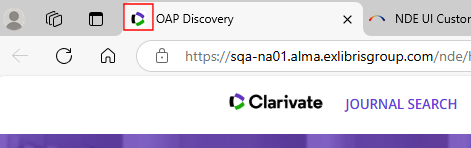 Favicon in NDE UI Tab
 -
custom_icons.svg – Add the icons (based on the ID of the default icon) to this file using the SVG format. You can add as many icons as needed using the <symbol> element for each.
All custom icons must be included in the custom_icons.svg file. Multiple custom icons need to contain the IDs and paths for each custom icon within the custom_icons.svg file. To change a custom icon, the change must be made in the custom_icons.svg file.
 Search Icon in the NDE UI
To determine the ID of an icon, use a browser's Development Tools to inspect the icon you want to customize. After selecting Inspect Element option and the icon, the ID of the icon appears in the data-mat-icon-name field:
 Inspecting the Icon for the ID
For example, the custom_icons.svg file may appear as follows with a single icon:
<?xml version="1.0" encoding="UTF-8"?>
<svg xmlns="http://www.w3.org/2000/svg" xmlns:xlink="http://www.w3.org/1999/xlink" width="0" height="0">
<symbol id="Search" height="24px" viewBox="0 -960 960 960" width="24px" fill="">
<path d="M440-240q116 0 198-81.5T720-520q0-116-82-198t-198-82q-117 0-198.5 82T160-520q0 117 81.5 198.5T440-240Zm0-280Zm0 160q-83 0-147.5-44.5T200-520q28-70 92.5-115T440-680q82 0 146.5 45T680-520q-29 71-93.5 115.5T440-360Zm0-60q55 0 101-26.5t72-73.5q-26-46-72-73t-101-27q-56 0-102 27t-72 73q26 47 72 73.5T440-420Zm0-40q25 0 42.5-17t17.5-43q0-25-17.5-42.5T440-580q-26 0-43 17.5T380-520q0 26 17 43t43 17Zm0 300q-75 0-140.5-28.5t-114-77q-48.5-48.5-77-114T80-520q0-74 28.5-139.5t77-114.5q48.5-49 114-77.5T440-880q74 0 139.5 28.5T694-774q49 49 77.5 114.5T800-520q0 64-21 121t-58 104l159 159-57 56-159-158q-47 37-104 57.5T440-160Z"/>
</symbol>
</svg>
Example of custom_icons.svg File
Adding Custom HTML and Other Files
In addition, you can add your own HTML files and, in fact, most other static file types (excluding database-related files) to your customization package. This allows you to host additional resources such as help pages, instructional content, or reusable components, all accessible with a direct link without altering core system behavior.
Once the files are added to the package, they can be referenced using the following URL structure:
Example:
-
Download the customization package for your NDE view.
-
Unzip the package.
-
Add your custom files to the assets folder.
-
Zip the package.
-
Upload the package to the server.
For more complete details, see Creating and Deploying a Customization Package, above.
Creating a Search Box with Deep Links to Primo NDE
This example creates a search box that uses a deep link to search your institution's catalog. For more details on how to create a deep link, see Deep Links - New UI.

If you are already using a search box to search in VE, when going live with NDE your queries are automatically redirected to NDE. There’s no need to create a new search box.
-
Create an HTML file and include the following lines, ensuring that you fill in the host name and customizable parameters, such as view code and tab (search profile):
<html>
<head>
<meta http-equiv="Content-Type" content="text/html; charset=UTF-8">
<!-- Script that converts the query string into valid parameter -->
<script type="text/javascript">
function searchPrimo() {
document.getElementById("primoQuery").value = "" + document.getElementById("primoQueryTemp").value;
document.forms["searchForm"].submit();
}
</script>
</head>
<body>
<!-- Fill in Highlighted Parameters -->
<form id="simple" name="searchForm" method="get" target="_self" action="https://<host_name>/nde/search" enctype="application/x-www-form-urlencoded; charset=utf-8" onsubmit="searchPrimo()">
<input type="hidden" name="vid" value="<view_code>">
<input type="hidden" name="tab" value="<search_profile_slot_code>">
<input type="hidden" name="search_scope" value="<search_profile_code>">
<input type="hidden" name="lang" value="<2_char_lang_code>">
<!-- Fixed parameters -->
<input type="hidden" name="query" id="primoQuery">
<input type="text" id="primoQueryTemp" value="" size="35">
<!-- Search Button -->
<input id="go" title="Search" onclick="searchPrimo()" type="button" value="Search" alt="Search" style="height: 22px; font-size: 12px; font-weight: bold; background: #DE6E17; color: #ffffff; border: 1px solid;">
</form>
</body>
</html>
-
Example search query:
https://na02.primo.exlibrisgroup.com/nde/search?vid=TRIAL_10_INST:GENERIC_NDE&tab=Everything&search_scope=MyInst_and_CI&lang=en&query=any,contains,peace&mode=advanced
If you are displaying multiple search boxes on a page, you must define separate functions and forms for each search box, ensuring that the red names and IDs are unique for each search box.
-
To test the search box, open the HTML file in a browser and perform a search. If you saved the HTML file on a Web server, use the following URL to access the search box:
http://<web_server>/<path>/<filename.html>
Advanced Customization Capabilities
More advanced customizations, beyond standard branding, can be incorporated into the NDE UI in the following ways:
- Using the NDE UI customization package
- Integrating external add-ons
A special code table, NDE Custom Defined Labels (Discovery > Display Configuration > Labels), can be used to add and manage custom labels for use in custom modules or extensions to existing modules.
NDE UI Customization Package
For deeper modifications beyond standard branding, you can use the NDE UI Customization Package on GitHub, which enables developers to build and develop the following:
-
A custom module tailored to specific institutional needs. You can create and map your components to designated NDE UI selectors, with the flexibility to place them on the top, bottom, before, or after existing elements, or even replace them entirely. For more information, see CustomModule on GitHub.
-
A custom color theme. For more details, see Creating Your Own Color Theme on Github.
-
An add-on. For more details, see Developing an Add-On for the NDE UI on GitHub.
Watch Customizing the NDE UI – Live Demo (76:25 min.)
External Add-Ons for the NDE UI
The NDE UI provides infrastructure to support the dynamic loading of add-ons developed by other stakeholders. This capability enables institutions to seamlessly integrate external functionality from vendors, consortia, or community members. External add-ons are managed through the Add-On Configuration page. For additional information, see Managing Add-Ons for the NDE UI.
Support and Feedback Options and Scope
The NDE UI in Primo VE offers a flexible customization framework that enables institutions to tailor the user interface to meet their branding, accessibility, and user experience goals. This section outlines Clarivate’s support boundaries, institutional responsibilities for their customizations, vendor responsibilities for third-party add-ons, and available community resources.
Institutional Customizations
Institutions can apply a wide range of interface adjustments using the official NDE Customization Package, including both basic branding updates (e.g., logo, theme, homepage layout) and more advanced user-interface changes through the Advanced NDE Customization module.
Clarivate provides support for:
- Maintaining the structure and compatibility of the NDE Customization Package across product releases
- Providing official documentation on how to use customization, including implementation examples and developer guidance, as published in the Advanced NDE Customization module
- Communicating upcoming changes that may affect customizations
- Responding to issues related to missing interface hooks or services needed to support institutional customizations
Clarivate does not support code changes made by institutions, especially when:
- Custom components were Implemented using the Advanced NDE Customization module.
- Third-party frameworks, unsupported libraries, or undocumented integration methods were employed.
- Code changes involved CSS overrides, JavaScript modifications, or custom HTML layouts.
Institutions are fully responsible for the development, testing, debugging, and maintenance of their own customizations. If you need to consult with a Primo Developer or raise an issue regarding the Advanced Customization module, refer to https://github.com/ExLibrisGroup/customModule/issues.
To ensure long-term compatibility and supportability, customers are encouraged to work within the officially supported customization framework.
Add-on Integration
The NDE UI allows for integration with third-party add-ons to enhance functionality. These add-ons are created and maintained by external vendors, and their support is outside the scope of Clarivate.
Vendors are responsible for:
- Providing a valid and accessible connect URL for the add-on.
- Supplying clear documentation and implementation instructions.
- Supporting the ongoing functionality of the add-on.
Clarivate does not provide support for vendor-developed add-ons or related functionality.
If an institution is interested in a new add-on, they should contact the relevant vendor directly. Vendors can refer to Clarivate’s guide for developing NDE add-ons for implementation guidance.
Alternative Channels - Community Resources
For additional help with interface enhancements such as styling, JavaScript behavior, or layout configuration, institutions are encouraged to connect with the broader Primo community:
- The Primo community mailing list (see Primo primo@exlibrisusers.org; Primo Email List)
- The Primo Developer Network
Clarivate will continue to expand this NDE UI Customization - Best Practices guide by publishing commonly requested customization examples and tracking community feedback over time.