

Configuring Auto Complete for Primo VE
Introduction
The Auto Complete feature provides suggestions for search terms as users type in their queries in the basic search. The suggestions appear under the search box. Users can select a suggestion in order to initiate a search using that suggestion as the search term. Up to five Auto Complete suggestions can be displayed at one time. The feature is enabled per view.
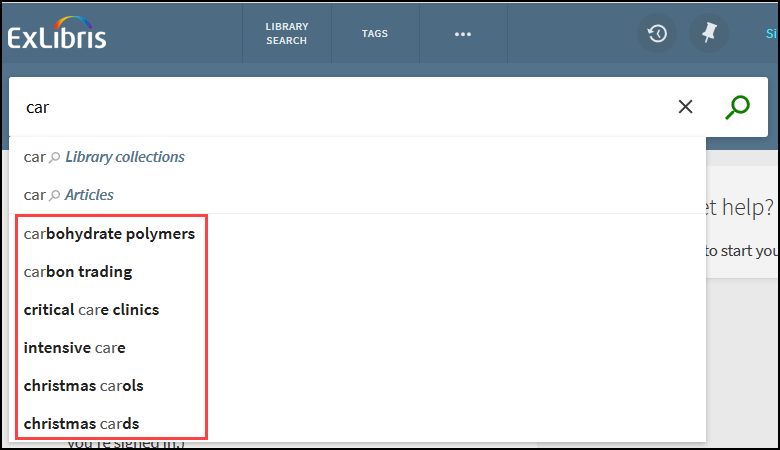
Auto Complete Suggestions (Original UI)

Auto Complete Suggestions (NDE UI)
The suggestions become more refined as the users enter more text. For example:
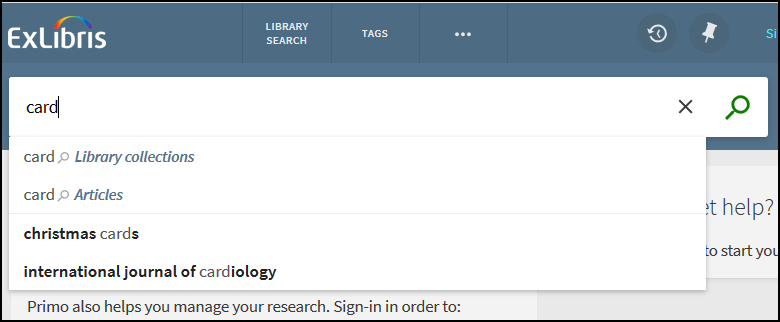
Auto Complete Suggestions Refined
Auto Complete for entities, based on Linked Open Data, may appear below the Auto Complete suggestions for search terms described here. For additional information, see Searching Linked Open Data - Person Entity.
Auto Complete Indexing and Searching
Two indexes maintained by Primo VE are used by the Auto Complete feature, one for local records and one for CDI records.
- Local Index – The local Auto Complete index is built from the metadata of each customer's local records. This index is updated via an internal Alma job (the Build Ranking Structure job). The job runs once a month automatically.
- CDI Index – The CDI Auto Complete index contains information from all Primo and Primo VE CDI users, and is not customer specific. It is built on two types of data:
- Popular titles – Titles of CDI records whose Full Display was viewed at least ten times over the past six months
- Popular searches – CDI searches that were performed at least ten times in the past six months
When a patron searches exclusively in the local scope, Auto Complete only uses the local index for its suggestions. For all other scopes – CDI-only searches, blended CDI and local searches, and deep search (such as EBSCO or WorldCat), data from both the local and the CDI indexes is used to generate the suggestions: the first two suggestions are derived from the local index, and the remaining three suggestions are from the CDI index.
The Auto Complete feature uses standard Primo VE search-engine technology, including normalization of characters, typographical-error correction, and highlighting. It ranks suggestions using Primo VE's ranking algorithm. Additional boosting is provided if suggestions match top queries in Primo VE and Wikipedia.
Enabling Auto Complete for a View
Auto Complete is enabled per view. If it is enabled for any view in your system, Primo VE generates a local Auto Complete index from your local catalog, in which it stores title, subject, and author metadata from all the records that belong to your institution.
Since the local index is only created when the Auto Complete feature is enabled for at least one view in your system, and the internal Alma job that creates it only runs once a month, it may take up to a month for the local index to be created after the feature is enabled. During this time, suggestions are based exclusively on the CDI index. After the job runs, it may take up to two days to receive suggestions that are based on local content.
To enable the Auto Complete service for a view:
-
In the View configuration page (Configuration Menu > Discovery > Display Configuration > Configure Views > [select Edit for the view]), in the General tab, select Auto Complete Enabled. (For more information about configuring views, see Configuring Discovery Views for Primo VE.)
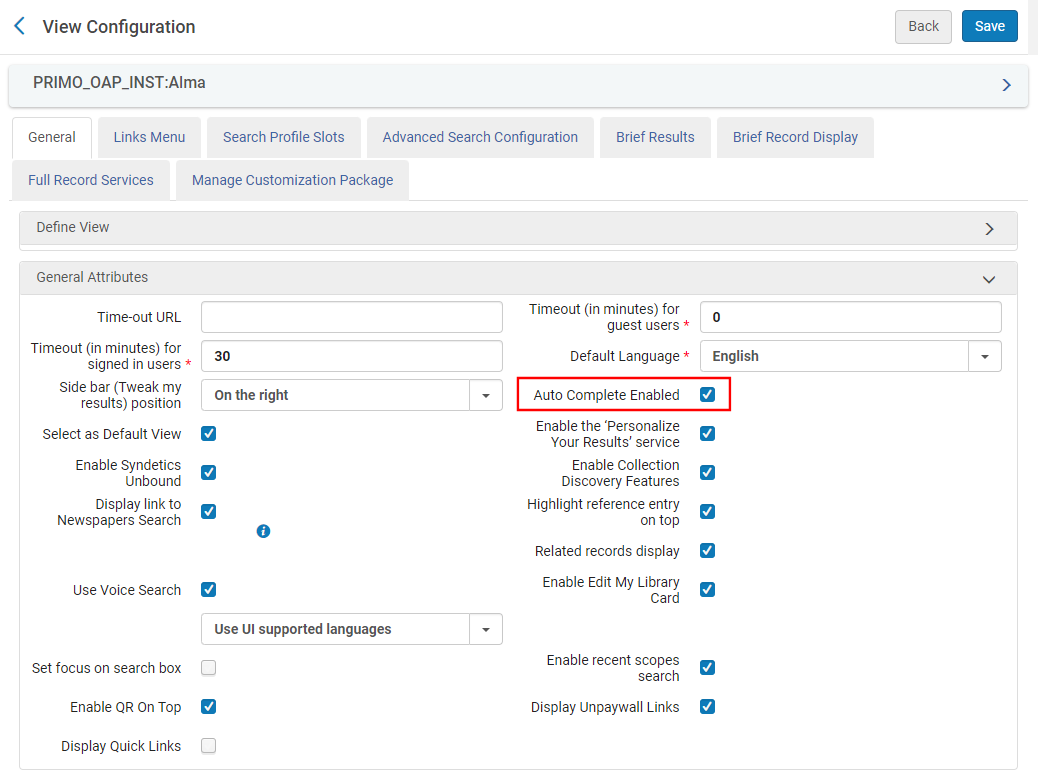 View Configuration Page
 -
Select Save to save your changes to the view.