ExLibris

Knowledge Assistant

BETA
 
  • Subscribe by RSS
  • Back
    Primo
    Ex Libris Knowledge Center
    1. Search site
      Go back to previous article
      1. Sign in
        • Sign in
        • Forgot password
    1. Home
    2. Primo
    3. Product Documentation
    4. Primo VE
    5. Primo VE (English)
    6. Configuring Advanced Search Interfaces (Original UI)
    7. Configuring Browse Search for Primo VE

    Configuring Browse Search for Primo VE

    1. Last updated
    2. Save as PDF
    3. Share
      1. Share
      2. Tweet
      3. Share
    1. Introduction
    2. Supported Types of Browse Searches
    3. Results of a Browse Search
    4. Brief Results for a Selected Heading
    5. Configuration Options
    Translatable

    Return to menu

    Introduction

    Browse Search enables users to navigate local library resources by browsing through alphabetically or numerically ordered lists rather than by performing a keyword or advanced search. It is particularly useful for finding items when you know part of the title, author name, or call number, or you would like to see what subjects are defined in a specific area.

    The key features of Browse Search are:

    • Alphabetical Lists – Instead of retrieving results ranked by relevance, Browse Search displays an ordered list (A–Z) of headings based on the selected index.
    • Indexes Available –
      • Author – Author names
      • Title – Titles of works
      • Subject – Controlled subject headings (e.g., Library of Congress Subject Headings)
      • Call Number – Classification numbers (e.g., Dewey or Library of Congress)
    • Exact Match Behavior – When you enter a term, Primo VE positions you at the closest match in the list, so you can scroll forward or backward to explore related headings.

    Supported Types of Browse Searches

    The following types of Browse Searches are supported:

    • Bibliographic headings of the following types: Authors, Titles, Series, and Subjects (based on a selected vocabulary). This type of Browse by utilizes the Alma browse functionality. For information on its full mapping, see Browsing Bibliographic Headings.

    • Shelf listings with call numbers of the following types: Library of Congress, Dewey, NLM, SUDOC, Shelving control number, UDC, and generic.
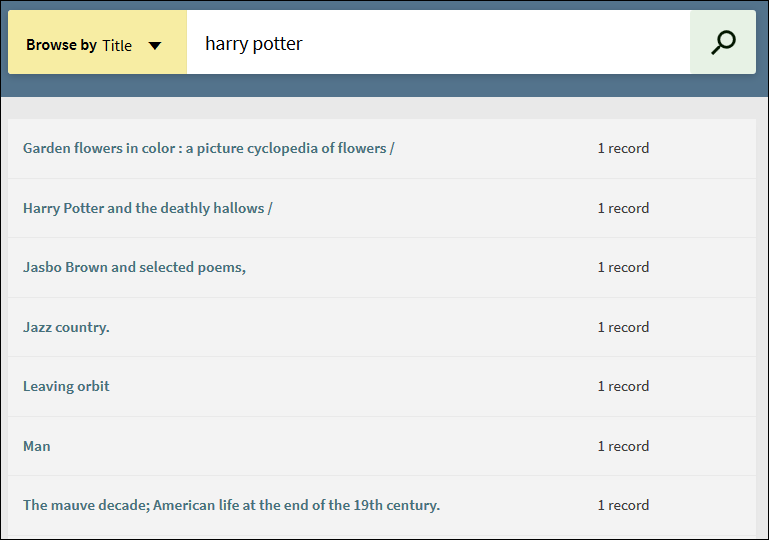
    When performing a browse search by title, it is recommended to omit leading articles. For example, it is best to search for the title great modern English stories an anthology instead of the title The great modern English stories an anthology.

    Since Primo VE utilizes the Alma browse capabilities, Browse Search includes only records from the IZ and does not return NZ records that are available to the institution. The Union view/NZ view includes only information held by the NZ and not IZ-specific records.

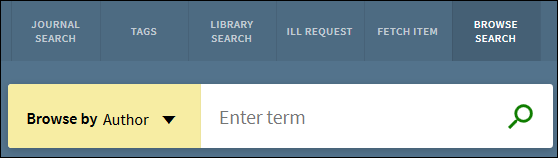
    BrowseSearch_LinkMenu2.png

    Browse Search Page (Original UI)

    Browse Search Dropdown list of search types in the NDE UI.

    Selecting a Browse Search Type (NDE UI)

    Results of a Browse Search

    The results of a Browse Search are presented as an alphabetical list of headings. For each heading in the list, the number of related records is shown. Each heading in the list returns a maximum of 500 related records.

    If a heading contains records with suppressed or restricted holdings:

    • These records are included in the heading's record count.

    • When a user selects the heading, the records with suppressed or restricted holdings are omitted from the results, and the system displays the following message:

      Some records are not displayed since they are restricted / suppressed from display.

    Browse search does not group records together by FRBR/Dedup in the results. Instead, it returns all relevant records that match the search terms.

    The following figures show the alphabetical list returned by a Browse Search by Author. Users can select one of the headings in the alphabetical list to display the brief results for the records related to it.

    Browse Search results for an author search in the original UI.

    Results of Browse by Author (Original UI)

    Browse Search results for an author search in the NDE UI.

    Results of Browse by Author (NDE UI)

    Brief Results for a Selected Heading

    When you select a heading in the results list, the related records are presented in a brief results page. In the NDE UI, information about the selected heading appears above the list of records.

    Brief Results from a selected heading in the results of a Browse Search in the NDE UI.

    Brief Results for a Selected Heading (NDE UI) 

    Configuration Options

    The following table describes the configuration that supports the Browse functionality. For information on how Browse searches are handled in Alma, see Browsing the Shelf Listing.

    Browse Configuration
    Element Description

    Links Menu tab in View Configuration (Configuration Menu > Discovery > Display Configuration > Configure Views)

    Edit the BrowseSearch code to enable/disable the Browse link and its supported browse types on the Main menu in Primo VE:

    • Authors

    • Titles

    • Series

    • Subjects (1-5)

    • Call Number types (callnumber.0 - Library of Congress, callnumber.1 - Dewey, callnumber.2 - NLM, callnumber.3 - SUDOC, callnumber.4 - Shelving control number, callnumber.UDC - UDC, and callnumber - generic call number).

    By default, Browse by Subjects utilizes Alma's Subjects (with MARC21 600 / 610 / 611 / 647) heading type mapping. If you prefer to exclude the 6XX fields, please open a ticket with Support.  If you are looking to include missing 651 terms from the Browse Search Vocabulary LCSH results, set the Vocabulary field to Library of Congress name authority records for 651.

    View Labels code table (Configuration Menu > Discovery > Display Configuration > Labels)

    The following code supports the Browse link in the Main menu:

    • mainmenu.label.BrowseSearch: Browse Search

    The following code supports the Browse link's tooltip when hovering over the link:

    • nui.mainmenu.description.Browse: Browse Search

    Browse Search Labels code table (Configuration Menu > Discovery > Display Configuration >Labels)

    Defines the display labels that are associated with browse.

    After assigning a subject vocabulary in the Links Menu tab, you may want to edit its associated display label:

    • nui.browse.subject.1 - subject

    • nui.browse.subject.2 - subject

    • nui.browse.subject.3 - subject

    • nui.browse.subject.4 - subject

    • nui.browse.subject.5 - subject

    View article in the Exlibris Knowledge Center
    1. Back to top
      • Configuring Advanced Search Interfaces (Original UI)
      • Configuring Collection Discovery for Primo VE
    • Was this article helpful?

    Recommended articles

    1. Article type
      Topic
      Content Type
      Documentation
      Language
      English
      Product
      Primo
    2. Tags
      This page has no tags.
    1. © Copyright 2026 Ex Libris Knowledge Center
    2. Powered by CXone Expert ®
    • Term of Use
    • Privacy Policy
    • Contact Us
    2025 Ex Libris. All rights reserved