

Working with Facets
When viewing search results, you can refine the list by using facets. Facets enable you to filter offers based on specific attributes and quickly narrow results to what is most relevant to your search.

To narrow down your result list, select the checkboxes next to desired facet values and then select Apply at the bottom of the panel.
The facet list is dynamic and displays only the values that exist within the current set of search results. For example, if the Single User license type does not appear as an available facet, it indicates that no offers matching that license type were found in the Marketplace for your search.
Users can personalize the facets displayed on each Rialto page to better match their needs. Customizing available facets enables you to refine search criteria, prioritize relevant filters, and streamline content discovery based on your preferences.
- Select the Customize button.
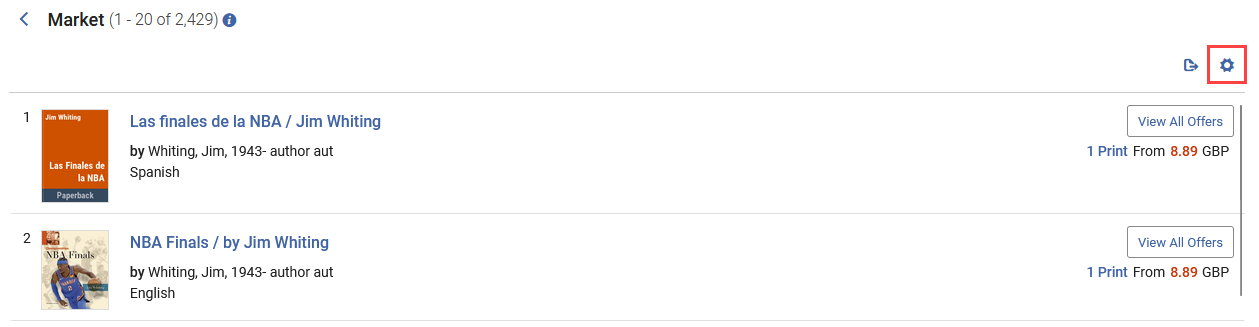 Customize button
A green dot on the Customize icon (
 ) indicates that the page’s brief view or facets have been customized.
 - Choose Facets Customization either under User Customization (changes made here apply only to the current user) or Institution Customization (changes made here apply to all users in the institution; available to administrators only). The Facets Customization pop-out is displayed.
- Drag and drop a facet to change its order in the Facets list. You can also unselect the checkbox next to a facet box to hide it from display.
- Select Apply to save your changes. To restore the default facet configuration, select Reset to default.
Facets in Rialto Search
The table below presents all the different facets you can find in Rialto Search. All facets are available in both market searches and curated lists.
| Facet | Description |
|---|---|
| Availability | Select In Stock to display only items that are physically in stock, helping you quickly identify offers that are likely to ship promptly.
In Stock only appears for North American users. The Not Yet Published and Out of Print toggles enable you to include/exclude not-yet-published or out-of-print offers from the results. |
| Awards | Filters results by awards received by the publication, helping you identify high-quality and critically recognized materials. |
| Binding | Filters results by the binding type of the offer. Rialto supports more than 120 binding options, which may appear regardless of the selected format. |
| Country of Publication | Filters results by the country in which the offer was published. The city of publication is available in the offer details. |
| Dewey Classification | Filters results by Dewey Decimal Classification levels. You can apply multiple Dewey call number ranges and further refine results using numbers to the right of the decimal for more precise filtering. |
| Edition Type * |
Filters results by edition characteristics to improve the organization and discoverability of offers. Available values include:
Edition information is displayed in the edition statement line in the offer details, together with relevant publisher-provided edition data. The Edition Type field is also available in the advanced search Query Builder, where you can filter for specific editions using the In / Not In operator with the same set of values. Important: While the Edition Type facet is marked with an asterisk (*), the Newest Edition value is not subject to the New Titles limitation and will continue to retrieve newly added content. |
| Electronic Book Types |
Filters results by the type of eBook offering available on the platform. This includes options such as Downloadable (the eBook can be downloaded by the end user) and DRM-Free (offers that do not use Digital Rights Management or restrictive access technologies). Short Term Loans make an eBook available for a defined number of days, based on library preferences, at a fraction of the title’s purchase price. |
|
Format |
Filters results by the format of the offer, such as print, e-book, or other. The Other category includes alternative formats such as audio and video, as well as offers that include CD-ROMs, maps, music scores, video games, and similar materials. |
| Interdisciplinary Studies * | Filters results to include offers that list the selected area as a secondary field of study, in addition to a primary one. You can enter multiple areas of study. |
| Language | Filters results by the language in which the offer is available for purchase. |
| LC Classification
|
Filters results by the main Library of Congress classification classes. Select a value to drill down to the next level in the classification hierarchy. |
| License |
Filters results by the available e-book license types offered by platforms, including:
|
| NLM Classification | Filters results by National Library of Medicine classification levels. |
|
Platform |
Filters results by the electronic platform on which the offer is available. |
| Price | Filters results by price range to help align selections with available budgets. You can specify custom price ranges using the checkboxes and apply the selection to refresh the results.
|
| Promotional discount - This entry is nested under the Price facet and enables filtering of titles participating in promotions. | |
| Print Supplier | Filters results by third-party print vendors that supply referral-based print titles. Use this facet to limit search results to one or more specific print providers. |
|
Publication Year |
Filters results by the year in which the offer was published.
|
| Publisher | Filters results by publisher. The Reprint and Self-Published toggles refine results by publisher type as a category, rather than by individual publisher. |
| Readership Level * | Filters results by readership level. A single record can belong to multiple readership levels, so applying one level may still return results associated with other levels. |
| Referral Model |
The Supplier Invoiced checkbox under Referral Model filters results to show only titles available through the referral-based ordering model. Upon purchase, these orders are invoiced by the supplier and not Rialto. This is relevant if ever configured for Rialto Acquisitions. |
| Reviews by Source | Filters results by reviews received for the publication, grouped by review source. |
| Subscribed Providers |
The Subscribed Platforms Only toggle under Subscribed Providers filters results based on whether content (both print and electronic) is available through providers configured for your institution. When enabled, only content from subscribed providers appears in search results. When disabled, all available marketplace content is displayed, including titles from providers that are not currently configured for ordering. |
| Subject |
Filters results by subject. This facet mirrors the values available in the Subject field in the query builder. You can apply a single subject by selecting it directly or select multiple subjects using checkboxes, with options to include or exclude them. In offer details, the Subject field displays all subjects associated with the offer, supporting multiple values where applicable. |
Facets marked with an asterisk (*) apply only to content treated by the New Titles team. These facets will not retrieve newly added content as of June 2026 and the volume retrieved will decrease gradually over time from now until June 2026.
Excluding Facets
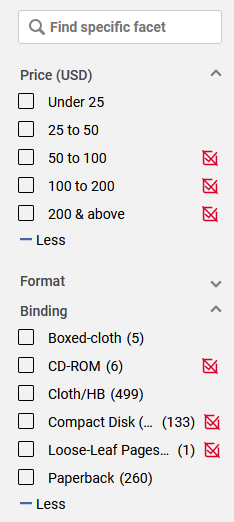
In addition to including results by selecting specific categories, users can exclude categories within facets. Select the checkbox at the end of a listed facet to exclude that category from the results and select Apply. Each excluded facet category is displayed with an  icon.
icon.
Saving Selected Facets and Sort Selections for Future Sessions
You can save facet selections for future sessions, both for marketplace searches and curated lists.
- Make your selections in the Facets panel and select Save.
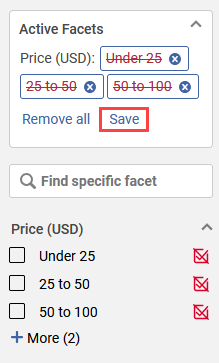 Save facets button
 - To clear all facets, select Remove all and then Save facets. Select Reload facets if you chose Remove all by accident.