

The New LOD Editor: High-Level Explanation and Workflows
The Linked Open Data (LOD) editor in Alma is designed to provide catalogers with a streamlined, intuitive, and ontology-aware editing experience. It brings the power of Linked Data into everyday workflows while maintaining simplicity and flexibility.
Key features of the LOD editor include:
- A unified form-based interface that is guided by the ontology, enabling future support for other RDF/LOD formats.
- A user-friendly and flexible design that supports optimal workflows tailored to catalogers' needs.
- Full integration with Alma's repository, enabling users to create and edit Works and Instances directly from the All Titles and Work search results.
- Built-in support for Linked Data integrations and lookup services, enabling seamless linking of entities to authoritative sources during cataloging.
- Simple and intuitive creation of records and templates, making it easy to get started and maintain consistency.
- Ontology-driven workflows with a label-centric user experience — technical details like URIs and navigation to external sources are available with a single click for those who need them.
Since BIBFRAME supports the use of blank nodes, the Alma LOD editor presents a top-down structure for creating records and templates.
Creating a Record or Template from a Blank Form
For details on creating records and templates, see Creating and Editing a BIBFRAME Records and Templates.
Users begin by selecting the class and subclass(es) of the entity they are cataloging, and whether they want to work with an existing template or to start from a blank form.
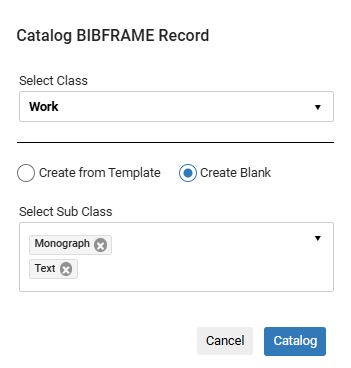
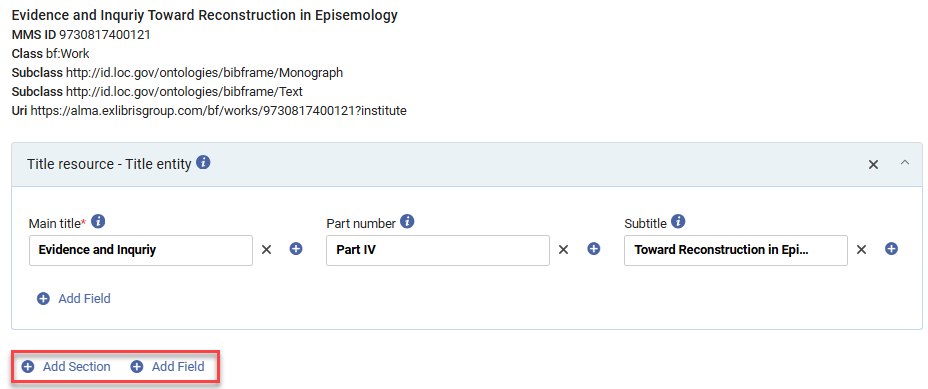
A cataloger can add either fields or sections:
- Fields are used for properties that complete an RDF triple on their own, such as identifiers, subjects, or links to other entities like bf:instanceOf (linking to a Work) or bf:expressionOf (linking to a Hub).
- Sections are used when a container is needed to represent a blank node. Each section is associated with a property and a class, as defined in the ontology. Within a section, users can add additional fields by selecting a class (and property) for each one.

When you choose to add a section or add a field in the LOD editor, you are prompted to select both a property and a class. These selections are guided by the BIBFRAME and BFLC ontologies.
- The property defines the relationship or attribute being added.
- The class (when applicable) defines the type of value or structure expected.
This structure supports complex metadata elements such as:
- The title section is created with the property bf:title and the class bf:Title (or any of its subclasses), containing the properties bf:mainTitle, bf:partNumber and bf:partName to describe different parts of a title.
- The Admin Metadata section is created with the property bf:adminMetadata and the class bf:AdminMetadata, containing, for example, the properties bf:creationDate, bf:assigner, bflc:encodingLevel, bf:decriptionConventions, and bf:descriptionLanguage for describing metadata about the metadata itself.
- The Publication Frequency section is created with the property bf:pubFrequency and the class PubFrequency containing, for example, the properties bf:frequency, bf:status, bf:firstIssue, and bf:lastIssue to describe serial publication details.
When editing a record, Alma allows you to Add Section or Add Field, giving catalogers the flexibility to model data accurately and efficiently.
How Properties and Classes are Suggested When Adding Fields or Sections
When cataloging in the Alma LOD editor, the system suggests properties and classes based on the structure and rules defined in the BIBFRAME and BFLC ontologies. This ensures that the metadata you create is semantically accurate and aligned with linked data standards.
For more information, see How Alma Uses the BIBFRAME and BFLC Ontologies to Create Records.
Step 1: Selecting a Property
When you choose to add a field or a section, the first step is to select a Property.
The dropdown list of properties is a list of all properties that fit at least one of the following criteria:
- The property is defined in the ontology as being used with the key class of the record (either bf:Work or bf:Instance).
- The property has no specific used with value (i.e., it is undefined or broadly defined as rdf-schema#Resource).
This ensures that only contextually relevant properties are presented, while still allowing flexibility for more general-purpose properties.
When adding a section, datatype properties are not suggested as they cannot contain additional fields (they are defined to contain only text), and selecting a class is mandatory.
Step 2: Selecting a Class
After selecting a property, you may be prompted to select a Class. The class dropdown is also dynamically filtered based on the ontology:
- If the property has a defined expected value (range), the dropdown shows:
- The class is defined as the "expected value".
- Any subclasses of that class.
- If the property does not have a defined expected value, the dropdown includes all available classes.
- If the property is a datatype property (i.e., it expects a literal value like a string or date), the class dropdown does not appear.
The class list always has the option to select none to support cases where no class is required such as bf:subject, bf:expressionOf, bf:genreForm, etc.
Not all properties in the ontology have a class defined as their expected value. In such cases, when adding a field, selecting a class is optional. However, when adding a section, selecting a class is required. This is because the class determines which properties can be suggested for adding fields within that section. If no class is selected, the section does not support adding fields, and the Add Field option is disabled.