

Display Functionality
This page describes the display enhancements associated with collaborative networks in Primo VE.
Brief Results Page
In a collaborative network, users can use the facets on the Brief Results page to filter results physically held by other member institutions and their libraries.
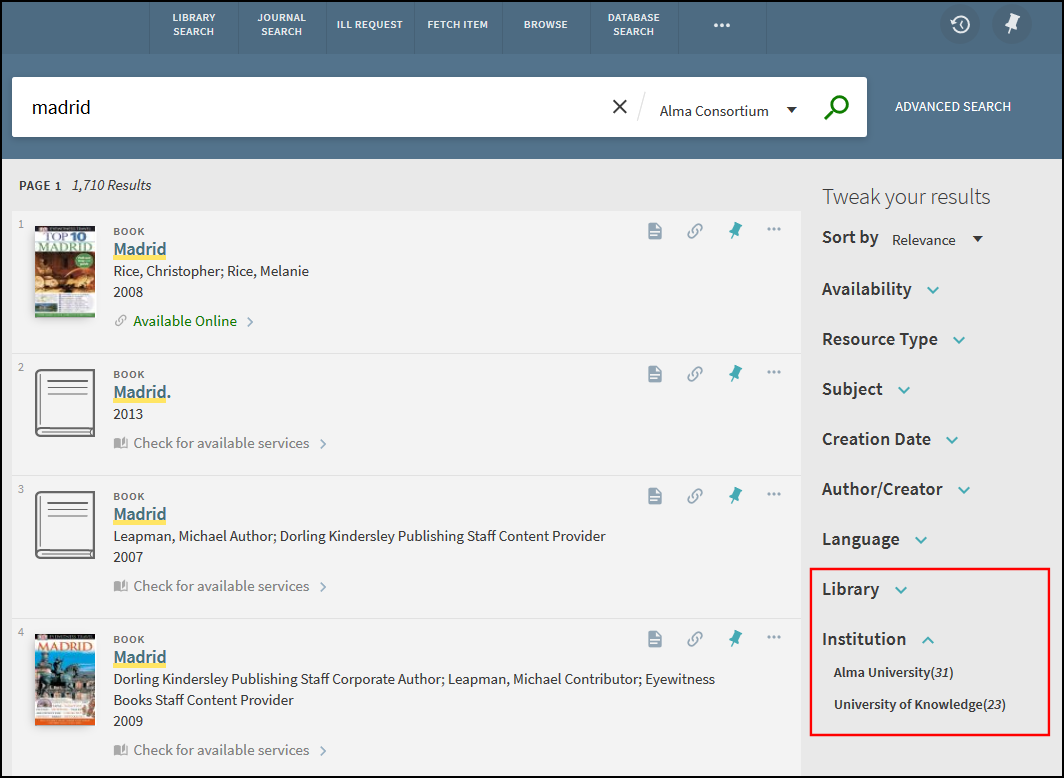
Brief Results Display Settings
The General tab on the View Configuration page (Configuration Menu > Discovery > Display Configuration > Configure Views) enables you to configure the following options (see Configuring Discovery Views for Primo VE):
-
Include member institution physical inventory in facets – Select one of the following options to specify when locations for other institutions display for the Library facet on Brief Results page:
-
Never – Physical inventory from other member institutions will never display in the facets. When this option is selected, the Library facet options are disabled.
-
Only in cross institution search – Depending on the search scope, physical inventory from My Institution and other member institutions may appear in the Library facet.
-
Always – Regardless of the search scope, physical inventory from any institution may appear in the Library facet.
-
-
Library facet – Select one of the following options to configure the display of the Library facet for other institutions' libraries:
-
Do not display member libraries – Libraries for other institutions will not be listed under the Library facet, regardless of the setting for the Include member institution physical inventory in facets field.
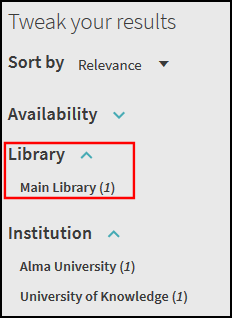 Other Libraries Not Displayed
 -
Display member libraries separately – Libraries for other institutions appear under a separate facet called Other Libraries.
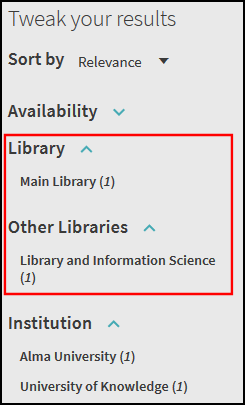 Other Libraries Facet
 -
Display member libraries with my institution libraries – All libraries are listed under the Library facet.
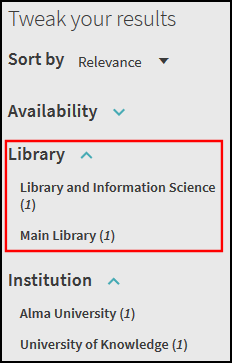 All Libraries under Library Facet
-
Full Record Page
Get It - Other Institution
The Full Record page displays detailed information for the selected record and enables users to request services for it. In a collaborative network, Primo VE enables users to perform the following actions per record:
-
View holdings for their home institution.
-
Place requests (such as place hold and resource sharing requests) to their home institution.
-
View holdings/items of other institutions and place requests, which are based on the other institution's definition and user rights.
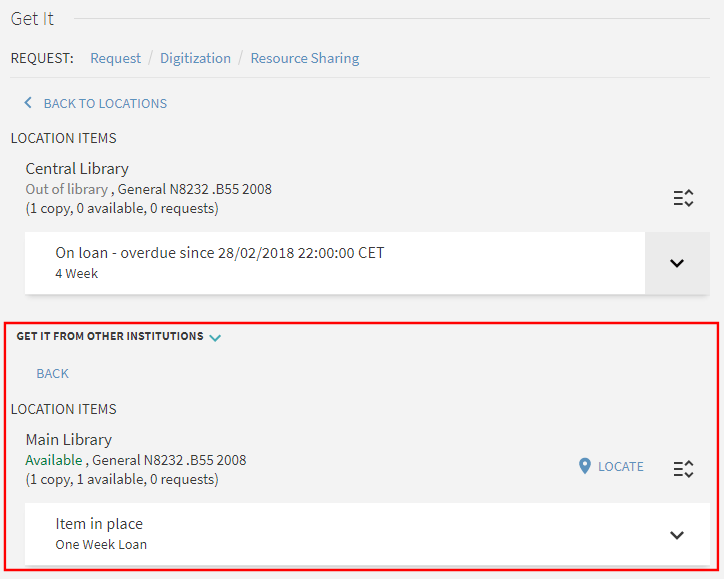 Get Holdings at Other Institutions - Original UI
 Availability at Consortium Libraries Section - NDE UIIn the original UI, if the record from your institution contains only online inventory, physical locations from other institutions appear in the View Online section.
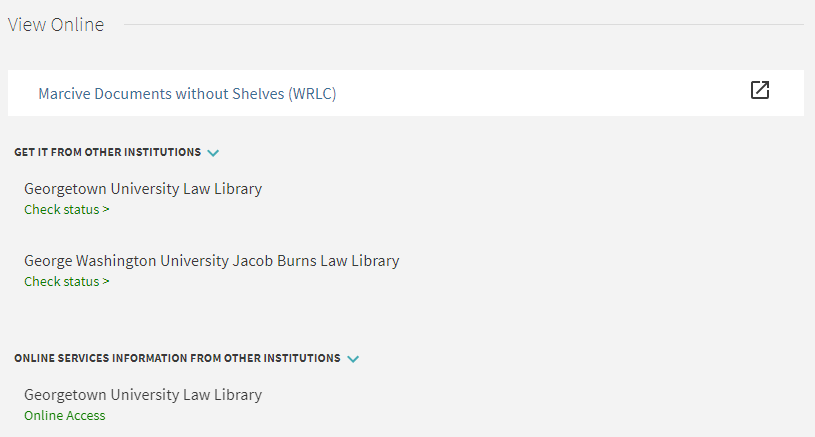 View Online Only - Get It from Other Institution
 -
Place requests directly from other institutions when part of a fulfillment network.
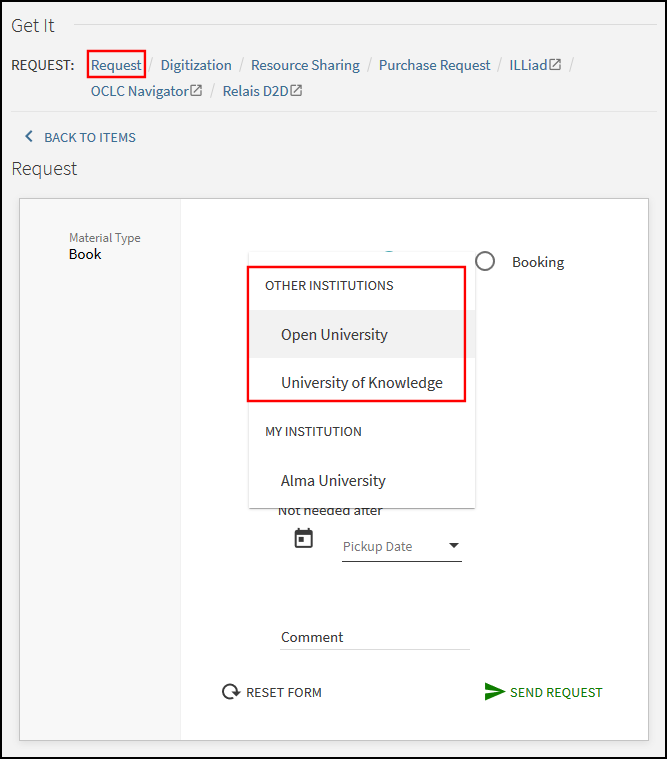 Place Request at Other Location - Original UI
 Place Request at Other Location - NDE UI
For additional information, see Get It at Other Institutions.
Linking Patron Accounts to Other Institutions
In a fulfillment network, exposure of information about holdings in other institutions in the network can be handled in a variety of ways, from showing no information at all to allowing patrons of other institutions to see specific information about the locations and availability of resources and even to place their own requests for those resources. In the latter case, several options are available for registering patrons of one institution as patrons of another institution in the network. The system can be set up to enable automatic registration by Primo VE or manual registration by the user. And, in the NDE UI, when manual registration is chosen, the option can be shown to all patrons or only to those whose permissions would enable them to register – for example, if inter-network loans are allowed for staff and students, but not for alumni, alumni would not see the registration option.
Automatic or Manual Registration
When a patron locates a resource at another institution in the network, even if that institution accepts direct requests from patrons of other institutions, the patron must be registered with it in order to request the resource. If the patron is not yet registered, the value of the uresolver_remote_register customer setting (Configuration Menu > Fulfillment > Other Settings) in the configuration of the institution holding the resource controls how the registration can be performed:
- uresolver_remote_register is set to Auto – The patron is registered automatically.
- uresolver_remote_register is set to Manual – A Register option appears in the Get It from other institutions section of the Full Display. If the patron wants to register, they select this option. Once they have registered, they can request the resource if they wish.
 Register Option in the NDE UI
For additional information, see Fulfillment Networks in the Alma documentation.
Hiding the Register Option when It Is Not Relevant
In the NDE UI, when uresolver_remote_register is set to Manual, the Register option can be hidden from Restricted patrons – patrons who are not eligible to register at the other institutions in the network. Restricted patrons are those who belong to user groups that appear in the Unexposed User Groups table (Configuration Menu > User Management > Collaborative Networks > Restricted Users).

This feature is controlled by the display_register_button_by_restricted_user_groups customer setting (Configuration Menu > Discovery > Other > Customer Settings). When a user accesses resource information from institutions in the network in which they are not registered, the Register option is provided as follows:
- display_register_button_by_restricted_user_groups is set to false – The Register option appears for all users.
- display_register_button_by_restricted_user_groups is set to true – The Register option appears for all users who do not belong to a Restricted user group.
Get It - Other Institution Settings
The following table describes the various configuration options to enable and customize this functionality.
| Element | Description |
|---|---|
|
General tab on the View Configuration page (Configuration Menu > Discovery > Display Configuration > Configure Views) |
The Display locations from member institutions field enables you to display physical holdings for other institutions under the Get It > Get it from other institutions section on the Full Display page. Otherwise, only the holdings from the user's home institution appear in the Get It section. If the record contains only electronic inventory, the Get it from other institutions section appears under the View Online section if other institutions have the physical version of the record. |
|
GetIT! Tab1 Labels code table (Configuration Menu > Discovery > Display Configuration > Labels) |
The following code enables you to customize and translate the label associated with physical inventory from other institutions:
|
|
Get it service labels code table (Configuration Menu > Discovery > Display Configuration > Labels) |
Register button label:
Title and buttons of the dialog box:
|
| Error Messages Labels code table (Configuration Menu > Discovery > Display Configuration > Labels) |
If Confirm fails, this message is displayed:
|
| Aria Labels code table (Configuration Menu > Discovery > Display Configuration > Labels) |
Aria labels:
|
View It - Other Institution
This functionality enables members of a consortium to display View It services for Alma electronic and digital records from other member institutions on the Full Display page. When enabled, a new Online services information from other institutions section appears collapsed under the View Online section on the Full Display page.
The View It information from other institutions is only informative and does not contain any links to online resources belonging to other institutions.
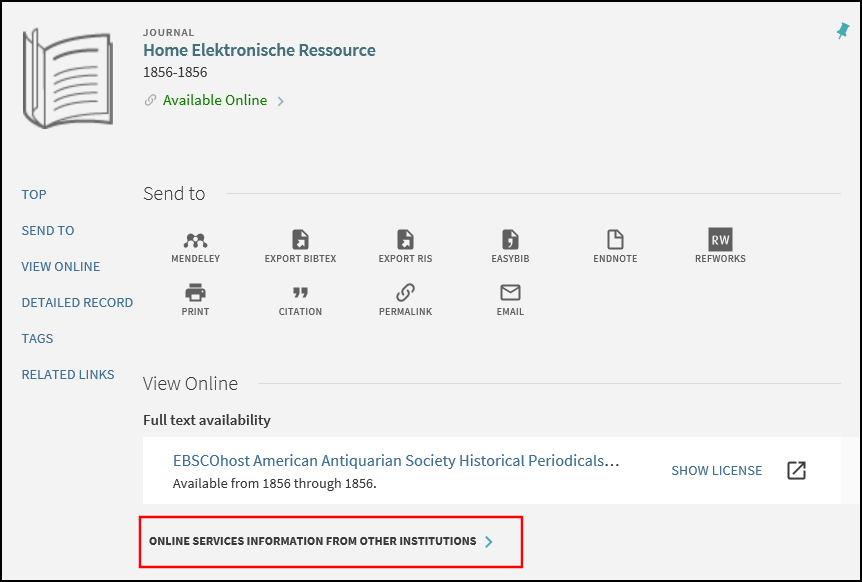
If users are interested in services from other institutions, they can open the section to display all other institutions that have online services.
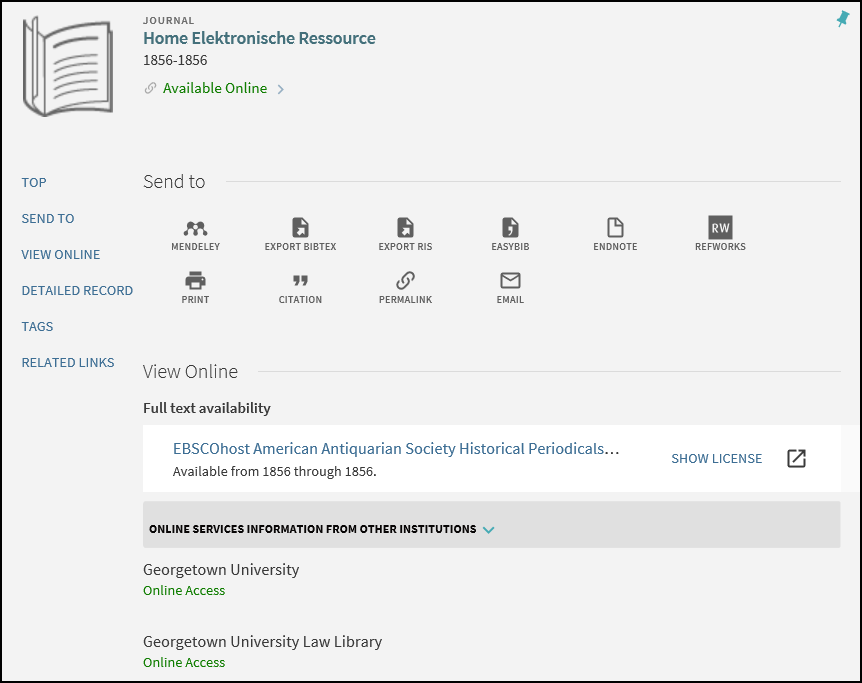

If the record from your institution contains only online inventory, physical locations from other institutions appear in the View Online section.
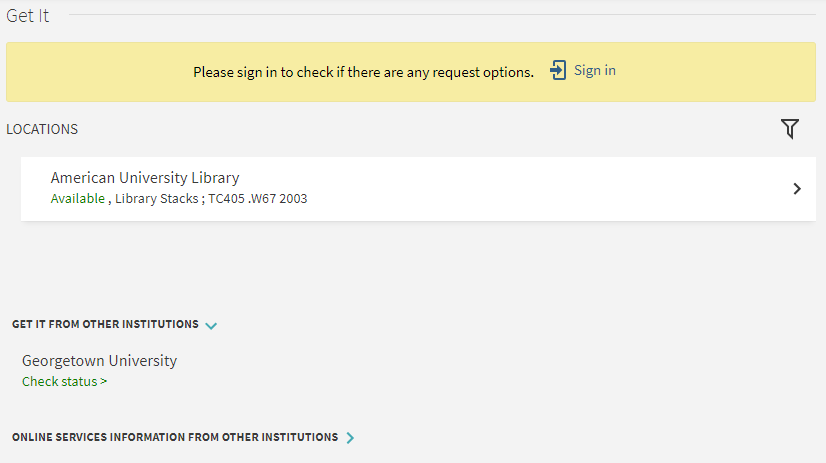
View It - Other Institution Settings
The following table describes the various configuration options to enable and customize this functionality.
| Element | Description |
|---|---|
|
General tab on the View Configuration page (Configuration Menu > Discovery > Display Configuration > Configure Views) |
The Display online services from member institutions field enables institutions to display View It services from other member institutions. If the record contains only physical inventory, the Online services information from other institutions section appears under the Get It section if other institutions have the electronic version of the record. |
|
View It Labels code table (Configuration Menu > Discovery > Display Configuration > Labels) |
The following code enables you to customize and translate the label under the View Online section on the Full Display page:
|
View It - Other Library / Campus
This functionality enables campuses/libraries to display View It services for Alma electronic and digital records from other campuses/libraries on the Full Display page. When enabled, a new Online services information from other campuses or Online services information from other libraries section appears collapsed under the View Online section on the Full Display page. If online services are not offered for your campus/library, the new collapsible sections appears under the Get It or How to Get It section instead of the View Online section.
The View It information from other institutions is only informative and does not contain any links to online resources belonging to other campuses or libraries.
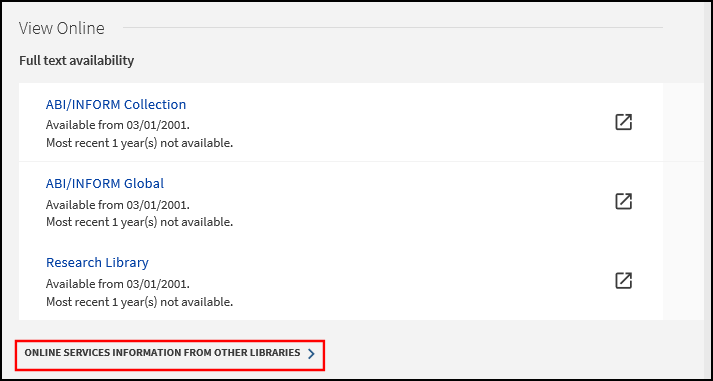
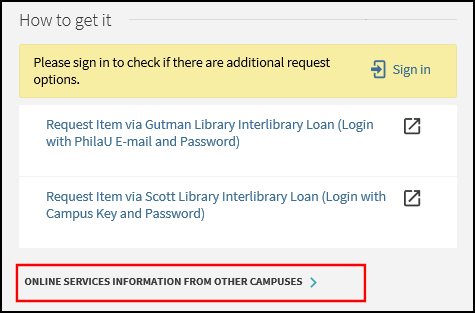
If users are interested in services from other institutions, they can open the section to display all other institutions that have online services.
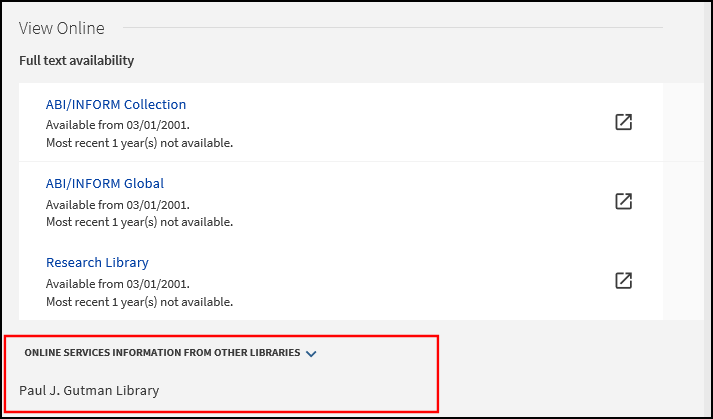
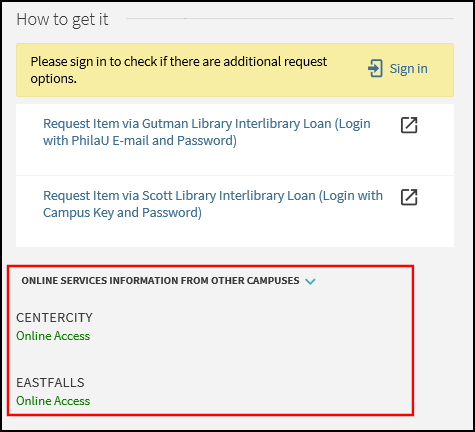
View It - Other Library / Campus Settings
The following table describes the various configuration options to enable and customize this enhancement.
| Element | Description |
|---|---|
|
General tab on the View Configuration page (Configuration Menu > Discovery > Display Configuration > Configure Views) |
For each member institution and the Union View, the Display online services from other campuses/libraries field enables campuses/libraries to display View It services from other campuses/libraries. |
|
ViewIt Labels code table (Configuration Menu > Discovery > Display Configuration > Labels) |
The following code enables you to customize and translate the new sections under the View Online section on the Full Display page:
|
My Library Card/Activity
In a collaborative network, Primo VE enables users to do the following in My Library Card (original UI) / My Library Activity (NDE UI):
-
See requests, loans, fines, and so forth for their home institution.
-
See requests, loans, fines, and so forth for other institutions that are part of the fulfillment network (consortium) to which their home institution belongs.
In the NDE UI, users can also see aggregate request, loan, and fine information for all the institutions in the fulfillment network to which their home institution belongs.
For more information about the handling of these patron services in Alma, see Fulfillment Networks.
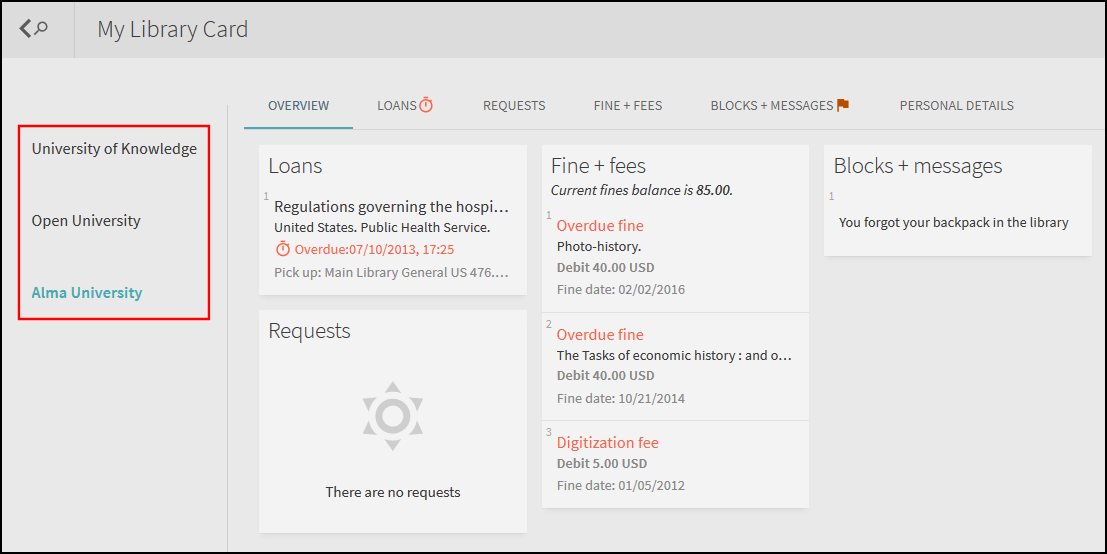

- myInstitution (default) – Open the My Library Activity page with just the data for the user's home institution displayed.
- all – Open the My Library Activity page with the data for all the institutions in the fulfillment network shown.