

Rialto Advanced Search
Advanced search allows you to create detailed marketplace queries by combining multiple parameters, conditions, and logical operators. Using the Query Builder, you can refine results with precise criteria, group conditions, and control how parameters relate to one another, enabling highly targeted searches.
Advanced search is available from the side navigation panel (Collection Development > Market > Advanced Search) or by selecting the spyglass icon next to the persistent search box (the persistent search box must be set to Market to perform an advanced search).

When the advanced search panel opens, you can build a search query using any of the parameters in the Query Builder (first dropdown). For a detailed explanation of all available parameters, see Advanced Search Parameters below.
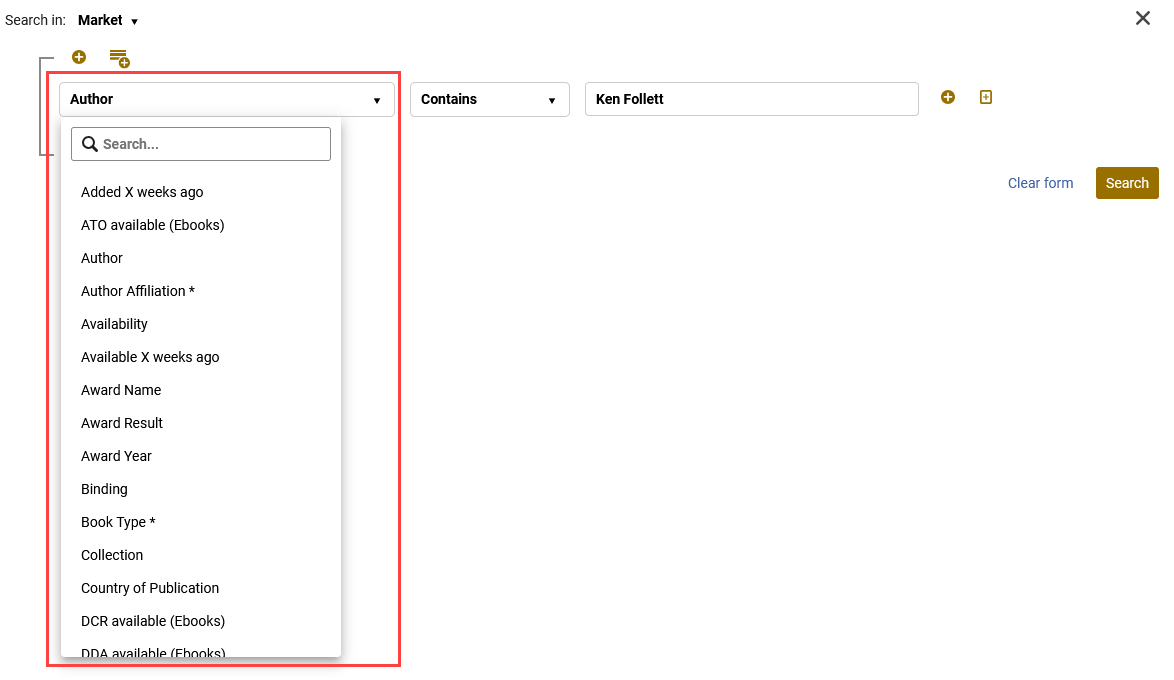
When you select a parameter in the first dropdown, the options in the second dropdown automatically adjust based on the selected parameter. For example, choosing Available X weeks ago enables you to choose between Less than or equal to and Greater than or equal to to build your query.

After selecting the desired condition in the second dropdown, enter the required value. When your criteria are set, select Search to run the advanced search and view the results.
You can refine your query further by selecting Add rule, which adds another parameter to the same advanced search. The Duplicate rule option creates a copy of the selected parameter row and reduces manual entries when working with parameters you wish to apply multiple times.

When building a query with multiple parameters in advanced search, you can control how those parameters relate to one another. There's a condition selector on the left side of the Query Builder that enables you to choose And or Or. Selecting And means that a title must meet all of the selected criteria to appear in the results; selecting Or means that a title only needs to meet one of the listed criteria to be included.

For more complex searches, you can select Add group to create a separate group of parameters. Groups allow you to combine multiple conditions together and then apply And or Or logic between groups. This enables highly customized queries—for example, finding titles that match all conditions in one primary group but any condition from another.

To start over, select Clear form to reset the advanced search fields.
For step-by-step guidance on performing an advanced search in the Rialto marketplace, watch the Advanced Search video.
Advanced Search Parameters
The table below describes the parameters available in the Advanced Search Query Builder and explains what each parameter represents.
| Parameter | Description |
|---|---|
| Accessibility Information | Filters offers based on whether accessibility details are available. |
| Added X weeks ago | Enter the number of weeks relative to the current date to filter offers that were recently added to the Rialto catalog. |
| ATO Available | Use to include or exclude e-books that are available as Access to Own (ATO) under a DDA plan. |
| Author | Use this parameter to search by author name. |
|
Author Affiliation * |
Use this field to search for titles written by authors affiliated with your institution. |
| Availability |
Select a value to display titles that are not yet published, out of print, in stock, or available to purchase. The In Stock value helps identify items with multiple quantities currently held in warehouses (currently available for North America only).
Available to purchase indicates that the item can be ordered, but does not necessarily mean it is in stock with the supplier, as it may need to be sourced from the publisher.
|
| Available X weeks ago | Enter the desired number of weeks from the current date. This field captures offers that became available for purchase within the specified timeframe, including newly added marketplace offers and titles that were previously cataloged but have since become available. For example, an offer previously marked as Not Yet Published is included when it becomes available according to the publisher or platform. |
| Award Name |
Use to narrow offers in feeds and Selection Plans down to those that have ever been nominated for and/or received a specified award. Award information is acquired by Rialto from Proquest Syndetics. |
| Award Result |
Use to narrow offers in feeds and Selection Plans down to those having award recipients or to those having award nominees. Award information is acquired by Rialto from Proquest Syndetics. |
| Award Year |
Use to narrow offers in feeds and Selection Plans down to those having award recipients and/or nominees in a specified year (or NOT in a specific year). Award information is acquired by Rialto from Proquest Syndetics. |
| Binding | Enter the type of binding of the offer. Rialto supports over one 120 binding options, any of which could display here, regardless of the format selected. |
| Book Type * | Use to search for unique titles that fall under a specific type of publication, such as dissertation or textbook. These values are manually assigned to offers by the New Titles team when treating titles. For a complete list of available values, see Book Type Values. |
| Collection | Search for a specific collection name, or select a platform to then view the first set of results. |
| Country of Publication |
Enter the country of publication of the offer. If needed, the city of publication can be viewed in the offer details.
|
| DCR available (Ebooks) | Use this field to show or hide ebooks that are available to be added to the DCR pool. |
| DDA available (Ebooks) |
Use this field to show or hide ebooks that are available to be added to the DDA pool.
On DDA profiles page, this does not appear because this is already configured as selected.
|
| Dewey | Enter a three-digit number to begin searching for the level of the classification you want to include or exclude. |
| Downloadable (Ebooks) | Use to show or hide ebooks that can be downloaded by patrons. |
| DRM free | Use to show or hide ebooks that have no digital rights-management assignment. |
| Ebook offerings for print holdings | This unique filter pulls in your institution's print holdings and matches them to the corresponding ebooks available in the marketplace. |
| Edition Type * | Select edition types to include ("in") or exclude ("not in") from the list. |
| Format |
Enter the format of the offer: print, e-book, or other, which includes all the alternative formats, such as various audio and video formats, and offers that include CD-ROMs, maps, music scores, video games, etc.
|
| Genre * | Enter genre to include or exclude offers that are part of a listed category. These are manually assigned to offers by the New Titles team. |
| Held in my institution |
Use to include or exclude your institution's holdings from feed results. The holdings data is pulled directly from what is available in Alma, helping to prevent duplicate purchases, or facilitating the purchase of additional copies of highly-used materials. Holdings includes print and electronic titles that are owned by the institution, as well as electronic titles that are included in an active subscription. By default, Rialto is configured to show holdings that are suppressed. Administrators can configure the system to hide suppressed holdings by changing the value of the rialto_prevent_publish_and_display_suppressed_holdings parameter. For additional information, see Configuring Rialto Settings. |
| Interdisciplinary Studies * | Select this option to focus on offers under an area of study that crosses multiple disciplines. These values are manually assigned to offers by the New Titles team. For a list of offers, see Interdisciplinary Studies Subject Areas. |
| ISBN | Search by full ISBN (10 or 13 digit). You can search for multiple ISBNs at one time (the amount of ISBNs that you can search for is limited to 256 characters in total). To do so, enter the ISBN's into "ISBN" marketplace search with a comma placed between number sets. |
| ISSN | Search by full ISSN to retrieve offers that fall under a specific serial publication. |
| Keyword |
Enter a keyword, or several keywords separated by comma (,).
Rialto finds any titles with the keywords in the title, author name, publication year, and series title. For example, searching for "Harry Potter Rowling 2020" finds all works with "Harry Potter" in the title and with Rowling as the author released in 2020.
|
| Language | Enter the language in which the offer is available to purchase. |
| Last Sold X years ago | This allows for filtering by materials sold during the past eleven years by ProQuest, enabling users to focus on items with verified sales to reduce potential noise when performing a broader search. |
| LC Classification |
Select one of the main classes of the Library of Congress classifications, or drill down to the next level in the hierarchy.
|
| LC Subject |
Enter the LC enter the subject name to refine feed output by Library of Congress Subject Headings.
|
| License |
Enter the available e-book license types offered by the platforms: Single User, Three User, Concurrent, Unlimited, Non Linear Lending.
|
| Newest edition for held titles | Match owned titles with the most recent editions published and available in the market. |
| NLM Classification | Select one of the main classes of the NLM (National Library of Medicine) classification, or drill down to the next level in the hierarchy. For details, see NLM Classification. |
| Platform |
Select the electronic platform on which the title is made available. Rialto holds all available platforms in ProQuest, and will continue to grow to provide a vendor-neutral marketplace.
|
| Predicted to be treated |
Use this to focus on materials that have not yet been reviewed by our New Titles team, but are expected to be reviewed by them. The New Titles team locates and evaluates newly published content and provides enhanced metadata to enable optimal collection management activities. This criterion can be used to limit the list of offers to a certain number of offers that are expected to be ranked most likely to be reviewed by the New Titles team: 500,000; 1,000,000; and so on. The larger the quantity selected, the lower the chances that any particular offer in the list will be reviewed. The ranking of titles for this feature is based on the analysis of a range of data about each work:
|
| Price | Select this option to refine your feed output by list price. Choose your operator to include or exclude offers above or below a given list price. |
| Print Supplier | Select this option to refine your search results by print supplier. Choose your operator to include or exclude one or more referral-based print suppliers. |
| Publication Type | Select the category of titles that you would like to include or exclude. Present categories are reprints and self published. |
| Published X years ago | Enter the numerical amount of years from the current year. Rialto finds any titles published in the range from the current year to the indicated number of years. |
| Publisher (contains) | This option allows for you to enter free text within name field, and when used in a search will either include or exclude all related values that contain the text entered. For example, using the phrase "university press" will search for all publishers that contain the text "university" and "press" within their name. |
| Publisher (exact) | This option allows for you to enter text within the name field, however, you are required to select an exact publisher name after entering text, and when used in a search will either include or exclude all the values that fall within the exact name selected. For example, after entering the phrase "university press," you must select a publisher name before performing the search. If no name is selected the page will display an error (within the query builder) or return no results (advanced search). |
| Publisher lists | Enables administrators to create a list of publishers for other staff to include or exclude from queries. For more information, see Publishers Lists. |
| Publisher Type | Use this filter to exclude or include titles that are known to be offered by publishers that focus primarily on reprinted or self published materials. |
| Readership level * |
Enter the readership level of the offer. Some offers may have multiple readership levels, so when you apply a filter for one level you might see other levels returned in your results. These values are manually assigned to offers by the New TItles team.
|
| Reading List Course Dates |
This parameter allows you to filter recommendations based on the course date range of the Leganto reading lists associated with a title.
|
| Reading List Tags | This parameter filters recommendations according to institution-specific tags applied to reading lists in Leganto. |
| Regional Focus * | Select a region to find offers with content that is about or features specific geographic areas. You can select the ares in the drop down or search. These values are manually assigned to offers by the New Titles team. |
| Review Source | Use to refine offers by review source. |
| Screen Reader Friendly | Use to include or exclude offers that support screen reader functionality. |
| Series title * | Use to refine by offers that fall under a specific series title. |
| Series Type * | Use to refine by offers that have a specific series type. |
| Short Term Loan (Ebooks) | Use to show or hide ebooks that are available as Short Term Loan under a DDA plan. |
| Subject | Use to refine searches by normalized subject values, eliminating the need to navigate through specific LCC and DDC trees to find books under broad categories. The Subject field follows the same pattern as the existing “Binding” field, supporting the “in/not in” operators and enabling search and multi-select of newly indexed subject values. |
| Title | Search by a full title or a part of title. |
| Treated Titles * | Use this to focus on materials that have been reviewed by our New Titles team. The New Titles team locates and evaluates newly published content and provides enhanced metadata to enable optimal collection management activities. |
| Treated X weeks ago * | Enter the numerical amount of weeks from the current date. This allows you to focus on offers that have been recently treated by the New Titles team. |
| Year of publication | Enter the publication year for the title(s) you are targeting. |
Values marked with an asterisk (*) apply only to content treated by the New Titles team. These fields will not retrieve newly added content as of June 2026 and the volume retrieved will decrease gradually over time from now until June 2026. For now, they remain available to support back-runs and historical queries.