

Searching the Rialto Marketplace
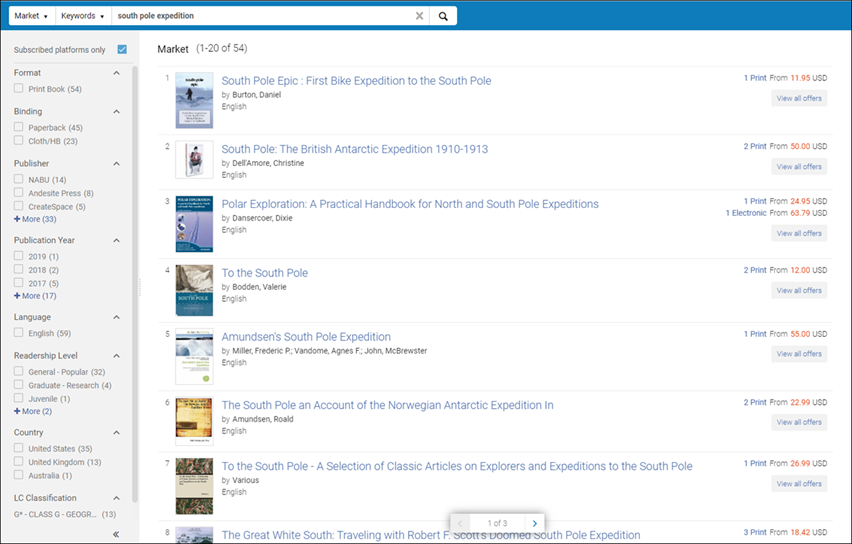
The Rialto Marketplace search enables you to search across all content types and across the entire Rialto catalog. This is the best place to start if you want to search for a known title. You can search by keywords, title, author, or ISBN.
Rialto Marketplace also matches the titles you are searching for to titles already owned by your institution, and provides you with full holdings information to help you make purchasing decisions on the fly. See Locating Offers that Match your Holdings.
For more information, see Search Guide.
Searching the Marketplace
Basic Search
Searching the Rialto market is available from the persistent search box located at the top of every page.
To search in Rialto Marketplace:
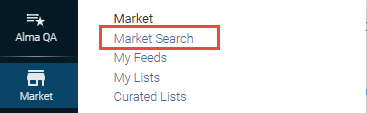
Select the "Market Search" link in the Rialto menu (Collection Development > Market > Market Search).
OR Go to the persistent search box, and select the search type "Market" from the drop-down list. Your last search option is your default for the next time you log in to Alma.
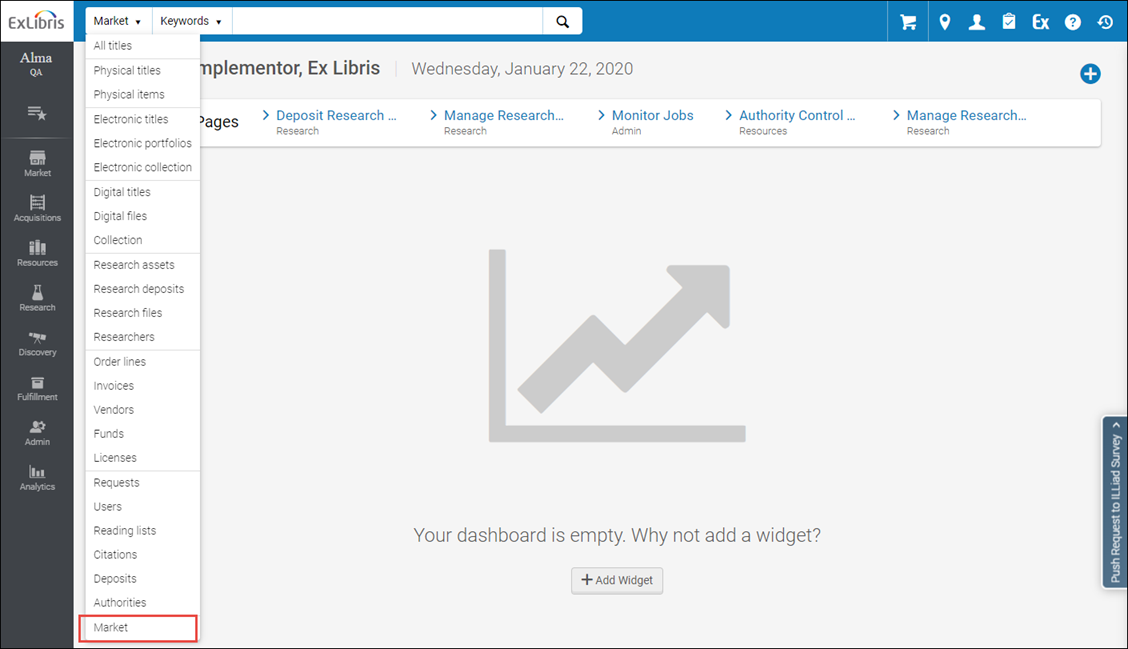
In the second drop-down list of the persistent search box, select the field by which to search. You can select the following options:
- Keyword: Indicate a keyword. Rialto finds any values with the keywords in the title, author name, publication year, and series title. For example, searching for "Harry Potter Rowling 2020" finds all works with "Harry Potter" in the title and with Rowling as the author released in 2020.
You cannot search by a partial ISBN number. Search by a full ISBN number in conjunction with another search criteria.
- Title: Search by a full title or a part of title.
- Author: Search by full name of author, or any part of the name.
- ISBN: Search by full ISBN (10 or 13 digit). You can search for multiple ISBNs at one time (the amount of ISBNs that you can search for is limited to 256 characters in total). To do so, enter the ISBN's into "ISBN" marketplace search with a comma placed between number sets.
Advanced Search
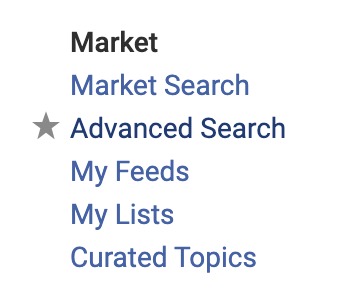
The Advanced Search experience can be accessed from the side navigation panel (Collection Development > Market > Advanced Search)
or from the spyglass found next to the persistent search box (Market must be selected from the persistent search box, too).

When the advanced search panel opens, you can perform your search using any of the parameters from our Query Builder; see Managing Recommendation Profiles and Feeds for a list.
Among the parameters in the Query Builder, users can select Series Type to refine their results by the series values. The Series Type parameter gives users the option to include or exclude sub-categories (such as Annual, Serial/Periodical, Series Numbered, and so forth) in their selection.
Listed values from the series code are as follows:
Users can multi-select the values.
Values:
|
Series Type in query builder
|
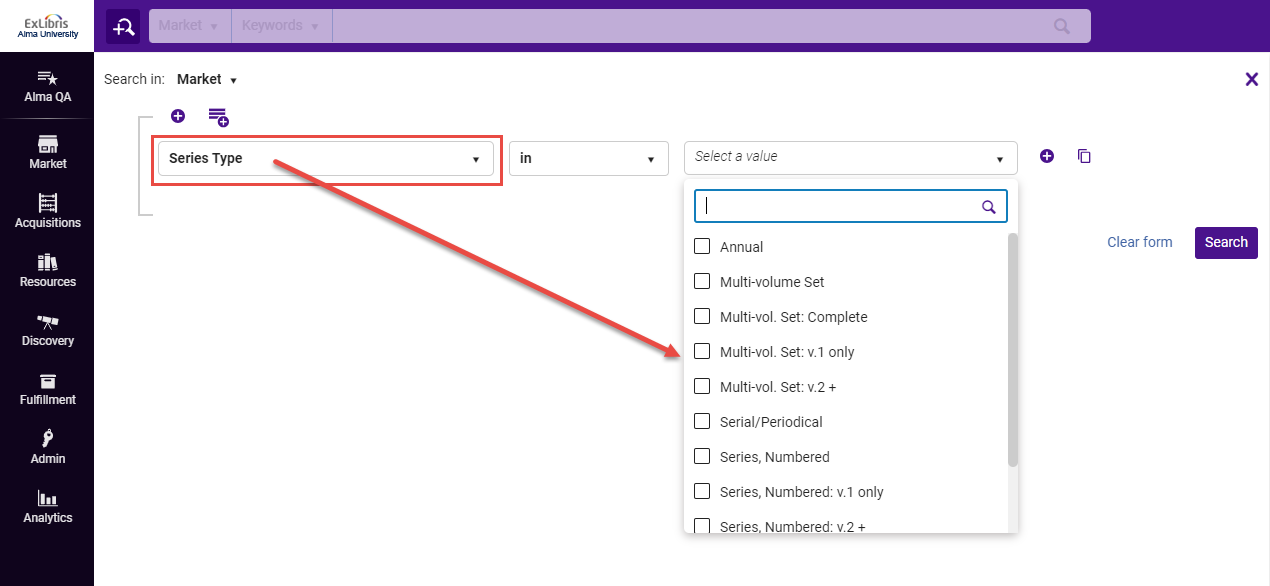
Narrowing Down Your Results by Facets
When No Results Were Found
When you perform a search that fails, a No Results is displayed to remind you some of the actions that you may take to simplify your query. The text is "Try checking your spelling and the search category, or remove an active filter."
Other suggestions for refining your search include:
- Search with Title and Author as keywords.
- When entering a title with punctuation into the Search box - strip punctuation, especially characters such as colons, apostrophes, etc.
- When entering a title with diacritics and umlauts into the Search box - strip them from the words.
- When entering a long title, try shortening it to only a section of it.
Works vs. Offers
-
Screenplays, movies, books, and soundtracks are all different works, since their content types are different.
-
The physical edition of a title and the electronic edition are different offers for the same work.
-
The first edition of a book and the third edition are different offers for the same work.
Viewing Offers of a Work
From the Work you can easily open the full list of its offers. All the offers are displayed on the Details page. This is a split page, displaying the offer and its details side-by-side.
-
From the search results list, do one of the following:
-
To view all existing offers, select the work or select View all offers on the right-hand side of the offer.
-
To view a specific type of offer (print, electronic or other), select the type of the offer you'd like to view.
 Viewing offers of a work
 -
-
If needed, use the Sort dropdown above the list to sort the offers by publication year or price, in ascending or descending order.
If a customer parameter is enabled, you can sort by the ranking profiles defined in your system instead of by publication year and price. This enables you to save time while identifying preferred materials.This sorting ability is disabled by default. To enable it for your institution, contact Ex Libris Customer Support. -
Select the desired offer to view its details.If
 appears at the top of the facets, Alibris offers are also available for these works; see Working with Alibris.
Identifying Your Holdings in the Market
In the search results, select the offer that has the "In your institution" badge. The Details page opens displaying all the search results. Note, Rialto will search for holdings on the Details pages, even when the badge is not present on the work level.
If any offers already owned by your institution were found, the Holdings panel opens to the right, displaying all the titles already owned by your institution.
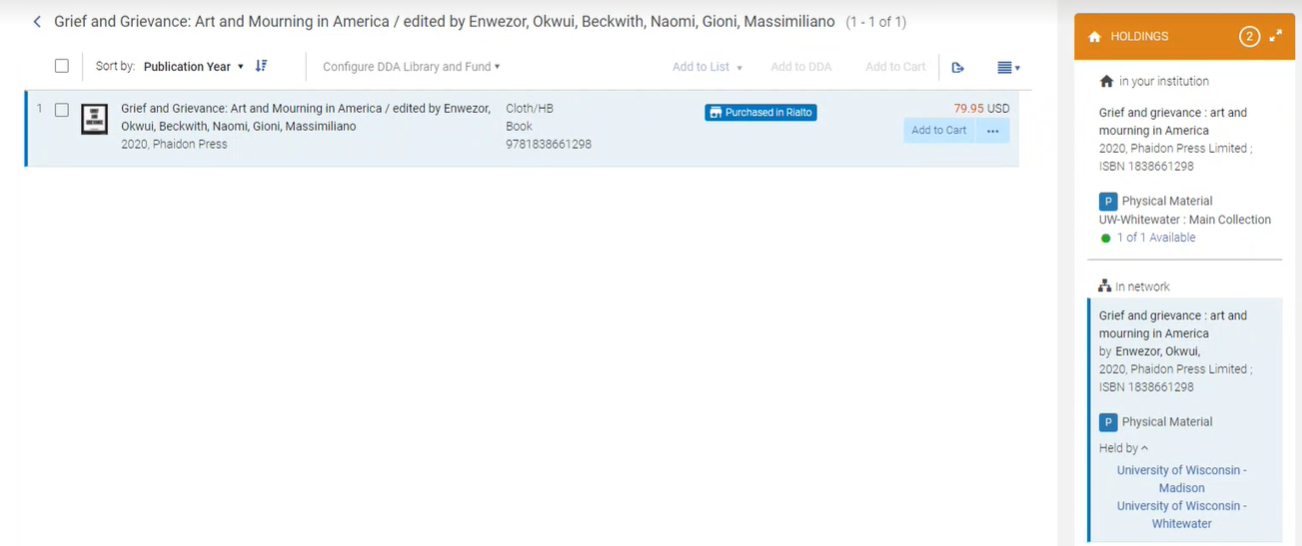
The following information is displayed in this panel:
| The offer is held by: | Displayed: |
|---|---|
|
Your institution
|
|
|
The Network Zone (if applicable to your institution)
|
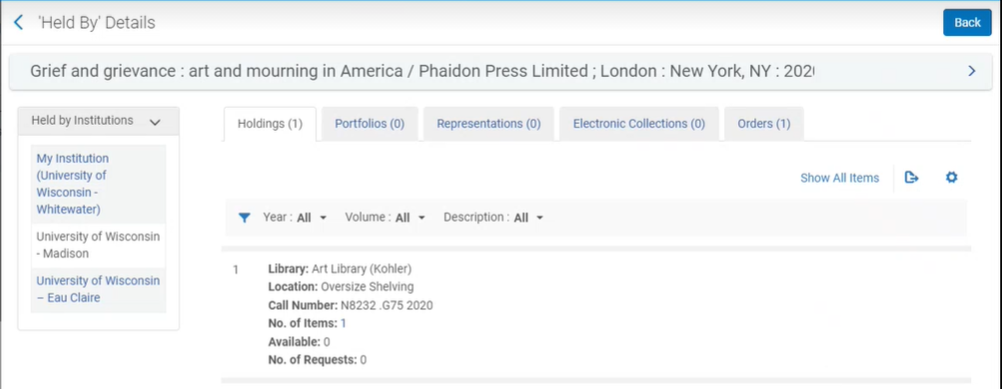
If your institution belongs to a Network Zone, the panel also displays (in a separate section) holdings records available in associated institutions. This search pulls titles that are available in the patron-facing discovery index and may include resources from other institutions that are linked to their Institution Zone, or the Network Zone and Community Zone records. When the holdings record is linked to the network, you can select the link to view the record's details. The 'Held By' Details screen opens, where you can see the details of the title held by your institution:
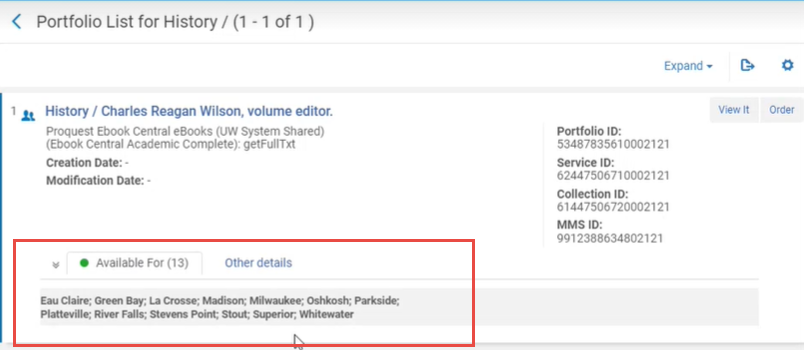
Note that in cases where the title is available from the Network Zone to a variety of institutions, the below page opens instead. Select the Available For tab to display the list of institutions that have the availability to see the title:
If the holdings record is not linked to the NZ, the link in the Holdings panel is disabled. |
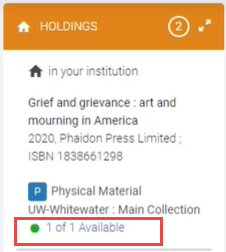
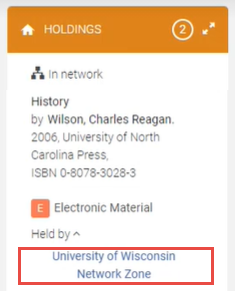
In some cases, the "Available for" statement might appear in the Holdings panel for the specific portfolios. This means that the offer is available as part of the stated inventory network group(s). Only patrons belonging to the group (campus / library / institution in a collaborative network, or a set of these) can access the resource when searching or browsing in Discovery. For electronic holdings, you can see the "Available For" statement applied to a portfolio or inherited from the collection or service in Alma. For more information, see Configuring Distributed Access to Electronic Resources. When the "Available For" statement does not appear in the Holdings panel, this means that the offer is available to all patrons, without any limitations.
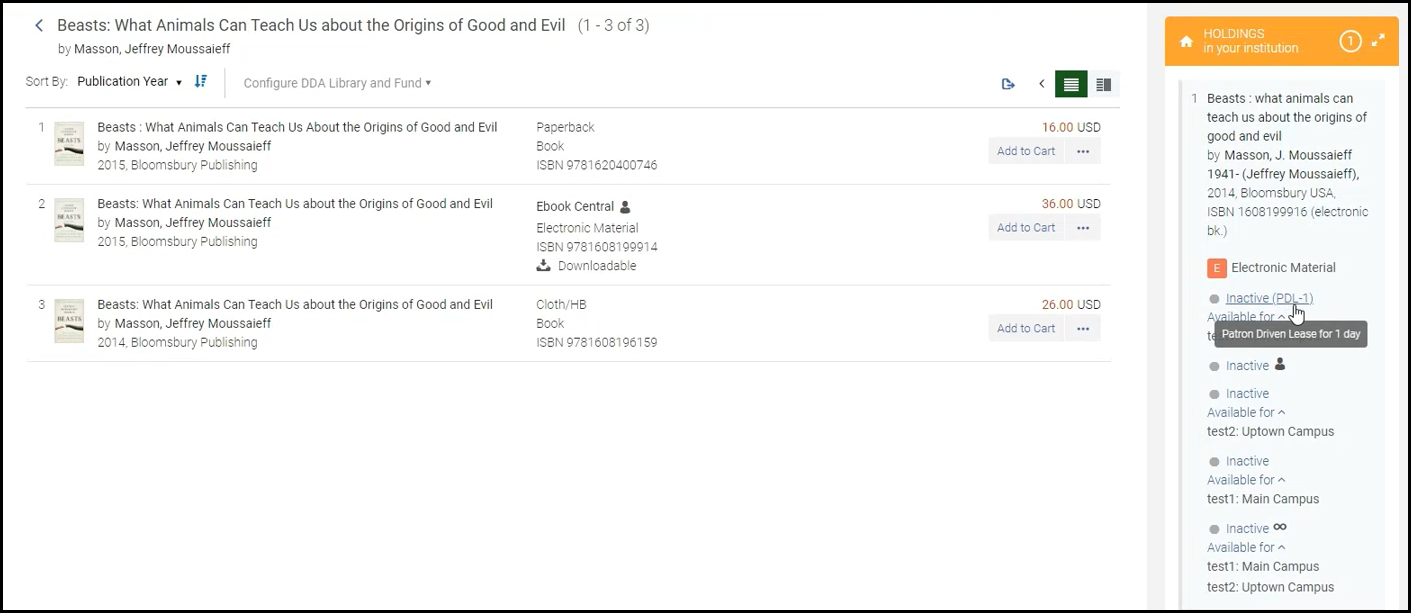
For e-books, the Holdings panel also displays the access model of e-books. Access model defines how many users can simultaneously access a resource and is available on each portfolio.The access models for which Rialto icons exist display as Rialto icons, and the other access models display the code of the access model, with the ability to view the short description on the model on hover. For more information about access model, see Managing Access Models.
Suppressed Titles in Rialto Holdings
By default, Rialto is configured to show holdings that are suppressed. Additionally, titles with suppressed holdings can be excluded from queries used in Title Alerts, Selection Plans, etc. Some libraries choose to suppress--rather than delete--holdings that are no longer available. For these libraries, suppressed holdings should not display in Rialto or be factored into queries.
Rialto can be configured to either hide suppressed holdings from the holdings view and not consider them in holdings queries. This configuration can be accessed by administrators from the new configuration page, under the Other Settings table.
Print Availability Badges and Messaging
Rialto displays availability information on offers for print materials, enabling users to gauge when the items can be expected to arrive once they are ordered. Basic shipping-status information appears in badges on the offer, both in the list of offers and in the Details pane when the offer is selected. Hovering over a badge displays further information. In addition, in the Details pane, a time estimate is displayed beside the badge. Shipping estimates do not include cataloging and processing time. Shipping-status information may vary by region. For additional information about badges, see List of Rialto Badges.

The following badges and shipping estimates may appear for an offer:
| Shipping Status | Time Estimate in Details Pane | Description |
|---|---|---|
 Available Available |
Available from supplier. Expected to ship in X-Y weeks | The title is available from a supplier, and the shipping estimate is based on current averages. |
| In stock with supplier | There is stock available with a supplier. Shipping times depend on the best available discount. | |
 In Stock In Stock |
In Stock. Usually ships within a few days |
Copies are on the warehouse shelf and ready to ship. This shipping status only appears for North American customers. |
 Not in Stock Not in Stock |
Not currently in stock. Orders accepted |
We will attempt to source the book. Shipping time is currently unknown. |
 Not yet published Not yet published |
Not yet published. Advance orders accepted | Orders will ship as soon as the title becomes available. |
 Out of print Out of print |
Out of print | The item is not currently available. |
Adding Offers to the Shopping Cart
Once you identified the offers you are interested in, you can place them in the Rialto Marketplace shopping cart. You can accumulate many offers in the shopping cart, but then you need to check out all of them in one action (see Adding Offers to Shopping Cart and Checking Out).
To add offers to the shopping cart:
-
From the search results (persistent search > Market), select the work that you are interested in. The list of individual offers of this work opens.
-
Select the offer you want to purchase, and select Add to Cart in the row actions list.
Upon clicking Add to Cart, both the work and the offer receive the "In your cart" badge. Other users will see the "In others carts" badge on these work and offer, to prevent duplicate orders. In addition, a confirmation appears in the upper-right corner of your Alma window, and a count indicator on your cart displays the total count of items currently in your cart.
Alternatively, select the linkable In Your Cart badge (
 ) to have the offer appear in the user's cart, with a focus on the selected item.
 "In your cart" badge and cart notifications
To see the names of other users that have the offer in their carts, hover over the "In other carts" badge.
-
When you are ready to proceed to checkout, select the Cart
 icon to open the cart. The cart opens with the offers accumulated so far. To proceed to checkout and to purchase the offers, see Adding to Shopping List and Checking Out.
 -
To return to the search results, select the
 Back arrow at the top of the list.
Rialto recognizes Ebook Central market restrictions applied to titles in order to prevent ordering materials that cannot be sold based on your institution type. The Add to cart/DDA options are disabled when titles are not for sale. Upon hover, a message appears stating, "Offer is currently unavailable for purchase."
Adding Offers to DDA Pool
The following roles are required to add offers to the DDA pool:
- Purchasing Operator, Super Selector, Selector
If your institution is subscribed to a Demand Driven Acquisition (DDA, the same as Patron Driven Acquisition, PDA) agreement with a platform (see Patron Driven Acquisition), the Rialto Marketplace displays the electronic offers eligible for DDA with the DDA icon by the title.
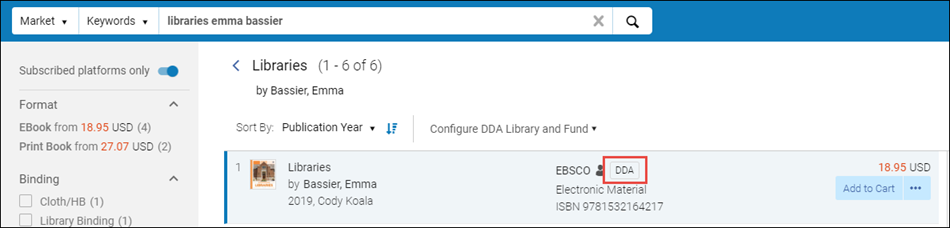
If an offer is eligible for DDA, you can add it to the DDA program your library is running with the platform for the offer. This means that once added, the platform monitors the usage of this offer by the patrons. Offers that are accessed more than a certain number of times (the specific number is defined in the PDA agreement) are automatically purchased by your library. Till the moment of purchase, while the offer is accumulating the required number of views, the offer is considered to reside in the DDA pool.
Note that the vendor needs to approve the addition of the title to the DDA pool. This may take from several hours to a few days. In the period prior to vendor approval, the offer is marked with the "Pending DDA" badge in feeds and other lists.
Adding Offers to DDA
The following roles are required to add offers to the DDA pool:
- Rialto Administrator, Rialto Manager, Purchasing Operator, Super Selector, Selector
To add the offer to the DDA pool, you need to specify the ordering library and indicate the fund that will be encumbered once the offer reaches the usage threshold defined in the platform agreement and is purchased.
In the case you are adding many offers to the DDA pool, you can speed up this process by changing the default option in the row actions list from Add to Cart to Add to DDA for the eligible offers.
To add an offer in the DDA pool:
-
Select an offer that has the DDA icon by the title. The Configure DDA dropdown becomes available at the top of the list. Alternatively, you can select the Configure DDA first.
If you do not have one of the roles specified above, the dropdown does not appear.
-
Open the Configure DDA option and select the ordering library, fund, and Reporting Codes for this title, then click Apply.
Adding Reporting Codes enhances internal reporting capabilities.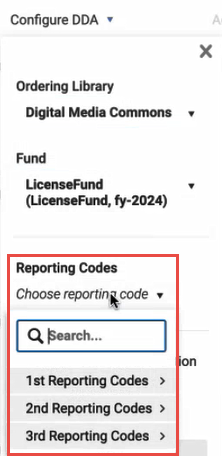 Reporting Codes selection in Configure DDA
 -
For a more convenient workflow, you can select the Add to DDA action as default for the current selection. This changes the primary action button from Add to Cart to to Add to DDA. This option works only within your current list of offers. Once you leave the current list of offers, the default option changes back to Add to Cart.
For physical offers, the default option stays Add to Cart.- If you do not have one of the roles specified above, this option does not appear.
-
After you apply your DDA configurations, they remain persistent across the current browser session anywhere in Rialto, on other pages as well. Clearing this selection will clear it everywhere in Rialto. If your browser times out or you sign out of Alma, you will have to repeat your selection.
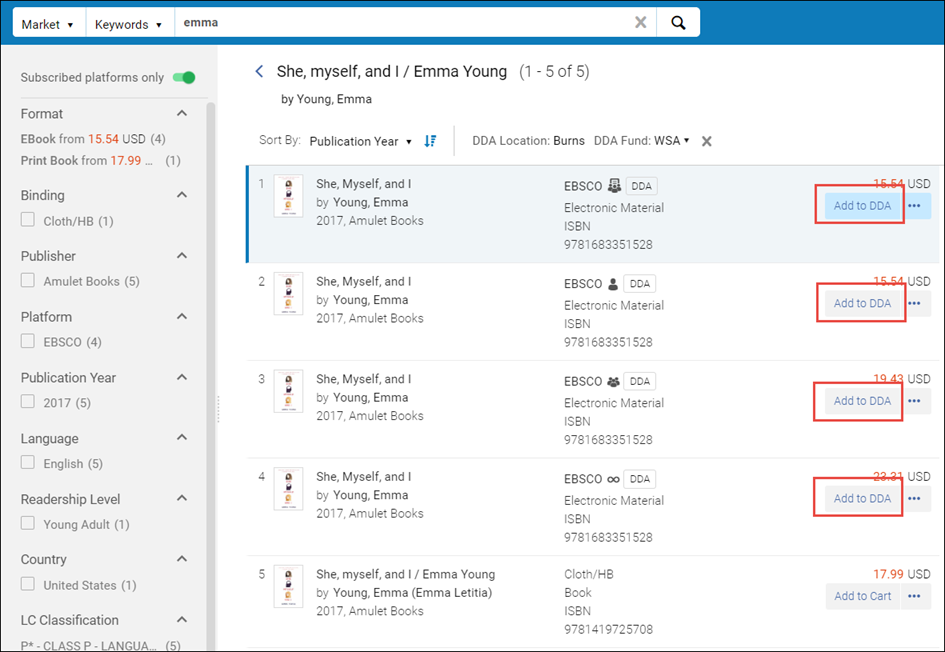
Add to DDA as the default option in the row actions list -
To add the offer in the DDA pool, select Add to DDA in the row actions list.
The offer is added in to the DDA pool, and the Pending DDA badge appears by the offer. -
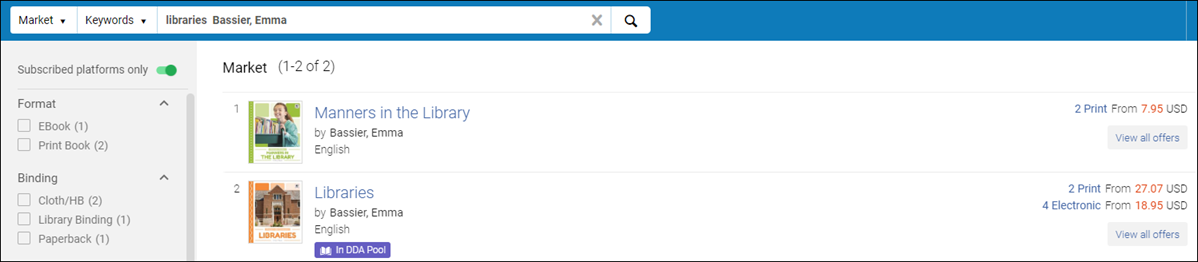
Once the vendor approves the addition to DDA, the badge changes to In DDA Pool:
Adding Offers to DDA Automatically
In addition to manually adding offers to DDA, DDA-eligible offers can be added to DDA pool automatically, via Selection Plans, if these were defined by your Rialto Administrator. The Selection Plans allow library administration to create a feed of offers to be added to your DDA pool at a chosen frequency. They add a user-defined number of eligible records ('cap') to the pool. For details, see Selection Plans.
The cap on the number of records that can be added to the pool within a single session is defined by the Rialto Administrator within the Selection Plan profile.
The frequency with which the profile runs is defined by the Rialto Administrator and it can be weekly, bi-weekly, or monthly.
Adding Offers to a List
You can add a single offer to several lists. To add an offer to a list, the list must already exist in the system. For instructions on creating lists, see Working with Lists.
To add an offer to a list:
-
From any offer page, select a title you want to add to the list, and select Add to List in the row actions list, and select the list to which to add the offer.
Alternatively, select the linkable In Your List badge ( ) to have the offer appear in the pertinent list, highlighting the clicked item.
 -
Once done, the "In your lists" badge appears by the offer and also by the work (note that on the work it can mean that a single offer is included in several lists, or that several offers are each included in a different list). Other users will see the "In others lists" badge on these work and offer, to prevent duplicate work. In addition, a confirmation appears in the upper-right corner of your Alma window.
 "In your lists" badge on a work, displaying the lists in which offers are included
To see the lists in which the offer is included, hover over the "In your lists" badge.
-
To add the same offer to another list, repeat the above step and select another list.
-
To return to the search results, select the
Back arrow at the top of the list.