

Working with Rules
- Cataloger
- Cataloger extended
- Catalog Manager
- Catalog Administrator
- Working with Normalization Rules
- Working with Merge Rules
- Working with Indication Rules
- Working with Brief Record Levels
- Working with Authority Headings Rules
- For more information on rules, see Presentations and Documents - Rules
Rule Area Menu Bar

| Action | Description |
|---|---|
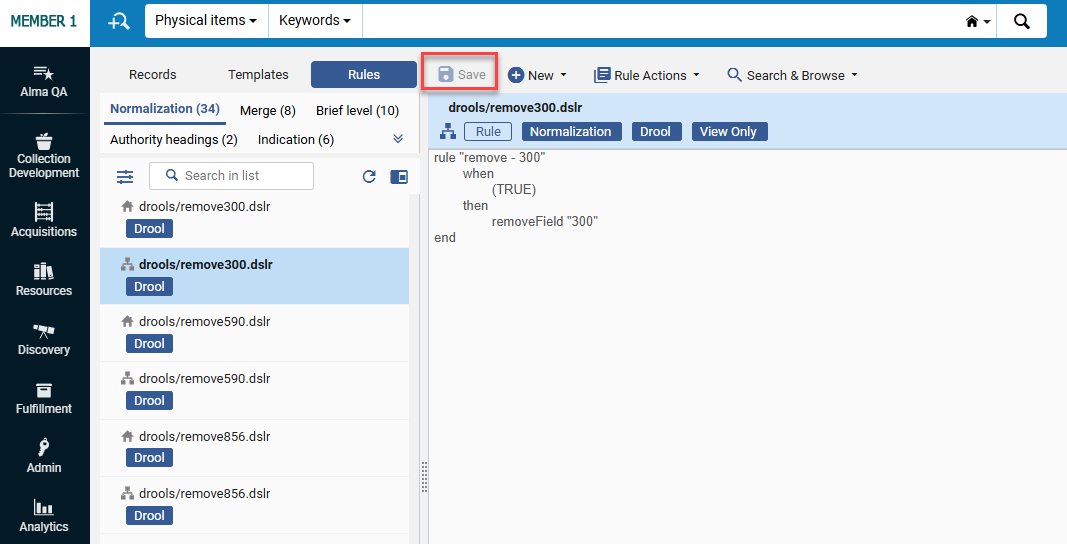
| Save Record (Ctrl+S) |
Saves the changes in the repository.
|
|
New Menu — Presents a list of rule types that you may want to create. For Network Zone consortia members, users can control whether to save new rules locally or in a network institution. To make this selection, open the Records or Templates area and go to New > Placement Options. Note that this selection is per user.
|
|
| Normalization | Select to create a normalization rule. For more details, see Working with Normalization Rules. |
| Merge | Select to create a merge rule. For more details, see Working with Merge Rules. |
| Indication | Select to create an indication rule. For more details, see Working with Indication Rules. |
| Brief level | Select to create a brief level rule. For more details, see Working with Brief Record Levels. |
| Authority headings | Select to create an authority heading rule. For more details, see Working with Authority Headings Rules. |
| Normalization (Research) | Select to create normalization rules for Esploro. This option appears only when Exploro is enabled in the system. For more details, see Managing Asset Normalization Rules. |
| Normalization (Discovery) | Select to create normalization rules for Primo VE. This option appears only when Primo-VE is enabled in the system. For more details, see Working with Normalization Rules. |
| Rule Actions Menu | |
| Edit |
Select to edit the rule (not available for out-of-the-box (default) rules and Community Zone rules). Enabled for Private rules and Shared non-default rules. |
| View | Select to view the rule in cases when you cannot edit it. |
| Duplicate | Select to duplicate the rule in order to modify and create another rule based on this rule. |
|
Contribute to CZ
|
Select to contribute this rule to the Community Zone (if you have this capability).
The contributed rule appears both in the Shared folder and in the Community Zone folder.
|
|
Select to view and modify the rule properties, such as its name.
|
|
| Delete |
Select to delete the rule. Enabled for local rules and CZ rules contributed by your institution |
|
Test external records
|
Select to save and test the rule in Primo-VE. For details, see Testing Normalization Rules for External Data Sources.
Enabled for Institution rules.
|
| Search & Browse menu | |
| Browse Shelf Listing (Alt+C) | Displays the following options in order for you to do a call number browse:
This functionality is also available by selecting Resources > Cataloging > Browse Shelf Listing. When you select the link in the Description column for a call number, the bibliographic record opens in the Metadata Editor for editing. When you select the Holdings link in the Level column for a call number, the holdings record opens in the Metadata Editor for editing. The way in which this browse works cannot be configured.
|
|
Browse Bibliographic Headings (Alt+H) |
Use this option to view bibliographic headings determined by the following search criteria that you select:
See Browsing Bibliographic Headings for more information. This capability can also be accessed from Resources > Cataloging > Browse Bibliographic Headings. |
| Search Resources (Alt+E) | Exclude the record from external system searches. |
Working with Shared Rules in a Network Zone
(New for May 2026)
Rules created by Network Zone users can be protected from being edited or deleted by member Institution Zone users, and can only be edited and deleted by other Network Zone users. In addition, Network Zone rules created by one Institution Zone member can be protected from being edited or deleted by a different Institution Zone member, and can only be edited and deleted by users of that member Institution Zone, or by Network Zone users.
- This feature applies to shared rules that were saved in the network i.e., it does not apply to private rules or rules shared in the institution only.
- It requires the enable_shared_rules_protection parameter (Configuration > Resources > General > Other Settings) to be set to true.
Rules now remain fully visible and executable by other users in the consortia, but cannot be modified or removed by them. Only the institution that created the rules, or Network Zone users with appropriate permissions, can edit or delete these rules.
This enhancement improves data governance and stability within consortia by preventing accidental changes or deletions of shared rules that impact multiple member institutions. It supports a controlled, centralized approach to managing metadata across the Network Zone.
This feature is relevant only for consortia operating with a Network Zone setup.