

Searching the Rialto Marketplace
Rialto Search enables you to search across the entire Rialto catalog of books for sale. When you perform a search, Rialto presents search results by work, with each work further broken down into individual offers. For details, see Works vs. Offers.
Searching the Marketplace
Rialto offers two types of search: basic and advanced search. Basic search is ideal for quick title or keyword lookups, while advanced search lets you refine results with detailed criteria.
Basic Search
You can perform a basic search in Rialto from the persistent search box at the top of every page (or go to Collection Development > Market > Market Search). This is the best place to begin when looking for a known title.

To perform a basic search:
- Select Market from the first drop-down list. Your most recently used option becomes your default the next time you log in to Alma (see what each option enables you to search in Searching in Alma).
- In the second drop-down list of the persistent search box, choose the field you want to search by:
- Keyword – Finds matches across title, author, publication year, and series fields.
- Title – Search by a full or partial title.
- Author – Search by the author’s full or partial name.
- ISBN – Search by full ISBN (10- or 13-digit). You can type in multiple ISBNs at once (up to 256 total characters) if you separate each ISBN with a comma.
You can refine your search results using the facets panel on the left side of the results page. Facets help quickly limit results by criteria such as format, price, availability, publisher, and other attributes relevant to the offers returned in your search. For details, see Working with Facets.
Advanced Search
Advanced search enables you to build precise, multi-parameter queries using the Query Builder, including conditional logic and grouped criteria. For details on using advanced search, see Rialto Advanced Search.
When No Results Are Found
If a search returns no results, the No results screen appears with a suggestion to review your spelling, check the selected search category, or remove any active filters that may be limiting your query.

Here are a few tips and tricks for improving your search results:
- Try searching by title or author as keywords.
- If the title contains punctuation, try a search without colons, apostrophes, and similar characters.
- If the title contains diacritics or umlauts, remove those characters before searching.
- For long titles, try entering only part of the title to broaden the search.
Works vs. Offers
Rialto organizes search results into a hierarchy of works and offers:
- A work represents a single piece of intellectual content—one creative work—regardless of format, publication year, or edition.
- An offer is a specific purchase option for that work. A single work may have multiple offers, but each offer is tied to only one work.
This structure avoids duplicate results and groups all editions and formats of the same title together. Here are a few examples to help you fully understand this structure:
- A physical book and an eBook of the same title are different offers for the same work.
- The first and third editions of a book are different offers for the same work.
- A hardcover, a paperback, and a large-print version of the same title are three different offers for one work.
- A translated edition is a separate offer within the same work.
- A collector’s edition with bonus material and a standard edition are different offers linked to the same work.
When viewing search results, items are first presented at the work level. Once you identify the title you are looking for and select a work, you view all available offers for that work.
Viewing Offers of a Work
From any work in your search results, you can open the full list of its available offers.
To view offer details:
From the search results, choose one of the following:
- Select View All Offers on the right side of the result.
- Select a format category (such as print or electronic) to open only those offers. Next to each format category, Rialto displays a lowest price indicator to help you quickly assess available options.

Once you are at the offer level, you can use the Sort dropdown above the offers list to rearrange the results.
Select a specific offer from the list to view its full details in the Details pane.

Customizing the Brief Record View
When viewing search results, the brief view can be customized to control which fields appear at first glance.
- Select Customize (
 ).
).
 Customize button
 - Choose Records Customization either under User Customization (changes made here apply only to the current user) or Institution Customization (changes made here apply to all users in the institution; available to administrators only).
- On the customization interface, you can:
- Show or hide fields by selecting or clearing the checkboxes next to available fields.
- Select and drag fields between the first and second columns (fields in the second column do not display in the brief view).
- Change the display order by reordering fields within the first column.
 Records Customization - Offer-level options
 - After making changes, select Apply. The brief record view updates immediately without requiring a page refresh.
When the brief view has been customized, the Customize icon displays a green indicator ( ).
).
Identifying Your Holdings in the Market
The Holdings panel helps you quickly identify offers that match titles already owned by your institution. This panel appears when you select a specific work and reach the offer level. If there are no matches in your holdings, the panel appears empty.
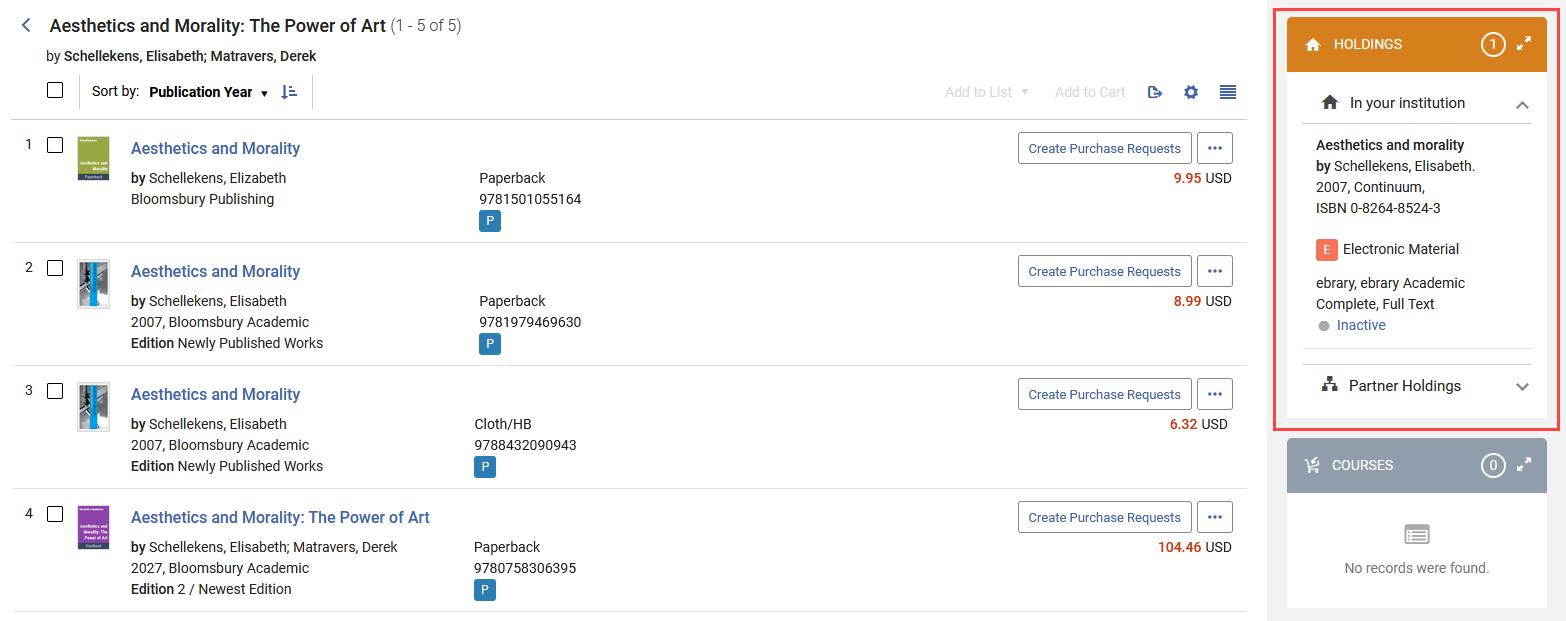
If your institution uses Leganto, a Courses panel appears below the Holdings panel. When populated, it indicates that the selected offer is included in one or more course-related Leganto lists. For more information, see Leganto Integration.
Viewing Held Offers
In search results, if matching holdings are found, the Holdings panel opens on the right side of the page, listing all titles already owned by your institution. Depending on the number of offers returned, the panel may take a moment to load, as Rialto performs real-time checks against your holdings to identify any recent additions that match the selected offer.
If a match is found, the information displayed in the Holdings panel varies depending on whether the item is held by your institution or by institutions within your Network Zone.
For each matching holding, the Holdings panel displays key title metadata, including the title, author, publication year, publisher, and ISBN, along with shelving location and detailed inventory information. This includes the total number of copies owned and how many are currently available (not on loan).
Holdings counts are based on available MMS matches rather than the total number of titles found, so the combined total of print and electronic matches may not always reflect the exact number of holdings in your institution.
Some libraries choose to suppress holdings rather than delete them when resources are no longer available. For these institutions, suppressed holdings should not appear in Rialto and should not be included in holdings-based queries.
Holdings Panel When Offers Are Held by Your Institution
If your institution holds some edition of the offer you are viewing, the Holdings panel appears as follows:

Print items are displayed even if they are currently unavailable; electronic portfolios are displayed only if they are active. If an electronic resource has been purchased but not yet activated, other members of a consortium will not see it as owned.
Item process type information from Alma is also shown, such as Missing, Lost, Claimed Returned, Loan, Hold Shelf, or Acquisition.
For e-books, the Holdings panel also displays the access model, which defines how many users can access the resource simultaneously.Holdings Panel When Offers Are Held by Your Network Zone
If some edition of the offer is held by your Network Zone, the Holdings panel appears as follows:

For institutions that belong to a Network Zone, the Holdings panel includes a separate section showing holdings available in associated institutions. This search retrieves titles that are available in the patron-facing discovery index and may include records from Institution Zones, the Network Zone, or the Community Zone.
When a holdings record is linked to the Network Zone, you can select the link under Held by to view additional details about the item. On that screen, select the Available For tab to view a list of institutions where the title is accessible.
In some cases, an Available For statement appears in the Holdings panel for specific portfolios. This indicates that the offer is accessible only to patrons who belong to defined inventory network groups, such as a specific campus, library, or institution in a collaborative network (or a combination of these).
For electronic holdings, the Available For statement may be applied directly to the portfolio or inherited from the associated collection or service in Alma. For more information, see Configuring Distributed Access to Electronic Resources. If no Available For statement appears, the offer is available to all patrons without restrictions.
Open Access Availability
If one or more open access versions of an offer are available, an open access smart link appears in the third column of the record display at the offer level.

The number in parentheses indicates how many open-access versions of that offer are available. Selecting the smart link opens the Open Access section of the offer details.
Institutions and users can choose whether to display open access smart links by configuring the Smart Links option in the record display settings.

The Open Access section, located under Additional Resources in the right-side panel, displays provider-specific links to available open access resources. Each link opens the provider's website in a new browser tab and directs users to the Open Access version of the resource. Multiple providers may be displayed for a single title.

If your institution uses Rapido, Rialto also checks whether a title is available for resource sharing and enables users to initiate a borrowing request directly from the marketplace. For more information, see Rapido integration
Print Availability Badges and Messaging
Rialto displays availability information for print offers to help users understand when items are expected to arrive after ordering. Basic shipping-status information appears as badges on offers, both in the offer list and in the Details pane when a single offer is selected. Hovering over a badge displays additional details.
Shipping estimates reflect supplier shipping time only and do not include cataloging or processing time. Availability messaging and estimates may vary by region.
The following badges and shipping estimates may appear for an offer:
| Shipping Status | Time Estimate in Details Pane | Description |
|---|---|---|
 Available Available |
Available from the supplier; expected to ship in X-Y weeks |
The title is available from a supplier, and the shipping estimate is based on current averages. |
| In stock with the supplier |
There is stock available with a supplier. Shipping times depend on the best available discount. |
|
 In Stock In Stock |
In stock; usually ships within a few days |
Copies are on the warehouse shelf and ready to ship. This shipping status only appears for North American customers. |
 Not in Stock Not in Stock |
Not currently in stock, but orders accepted | The item is not currently in stock. Orders are accepted, and Rialto attempts to source the title. Shipping time is unknown. |
 Not yet published Not yet published |
Not yet published, but advance orders accepted | Orders will ship as soon as the title becomes available. |
 Out of print Out of print |
Out of print | The item is not currently available. |
 |
Available from a third-party provider | The item is available from a third-party provider. |