

Working with Smart Harvesting
This page describes how to work with Smart Harvesting and assumes that you have a basic understanding of what Smart Harvesting is. For a general overview of Smart Harvesting, see here. For working with Smart Expansion, see here.
We recommend running Smart Expansion first, before running Smart Harvesting.
Watch the Smart Harvesting in Action video (5:42).
High Level Overview of the Flow when Working with Smart Harvesting
You use Smart Expansion when you have a list of assets known to belong to researchers, like a list of citations. When you run Smart Harvesting, Esploro brings in assets that are potential matches for a set of researchers that you select.
The first time you run Smart Harvesting/Expansion, the process is called a retrospective run. After that, Smart Harvesting runs on an ongoing basis to bring in new assets for all the researchers that were used in the retrospective run.
- Select the Central Discovery Index job in Repository > Manage Profiles.
- Select a set of researchers (see Creating a Set of Researchers, below).
- Leave the General Details section as is.
- For the Author Matching Approval Configuration section, see Running the Smart Harvesting Job on a Set of Researchers, below.
- Each researcher has a field called Last Smart Harvesting date. The value of this field determines the point in time from which assets will be brought in. For the first (retrospective) run, this field is empty. For ongoing runs, this date is updated automatically.
- Select Run Now. The settings are saved and the process is started.
- To monitor the progress of the process, select Monitor Captures in the Manage Profiles page (Repository > Manage Profiles).
- After the process has completed, assets that are pending approval display in the list at Repository > Author Matching Approval Task List (from the top right of the persistent menu). See Author Matching Approval Task List for more information.
See here for the list of asset types that are supported by Smart Harvesting.
For details on the Asset Matching algorithm that is that is invoked after adding assets to Esploro, see Esploro Asset Matching Rules.
Creating a Set of Researchers
First decide who to run Smart Harvesting for. This can be an opportunity to start engaging specific researchers with Esploro. For information on creating search queries and sets in Esploro see Managing Search Queries and Sets.
Make sure that Include in Smart Harvesting is set to Yes for these researchers. This flag can be set via the user/researcher loader ("SIS loader") or in the Researcher Settings section of a researcher profile (Researchers > Manage Researchers > [select researcher] > Researcher Profile tab).
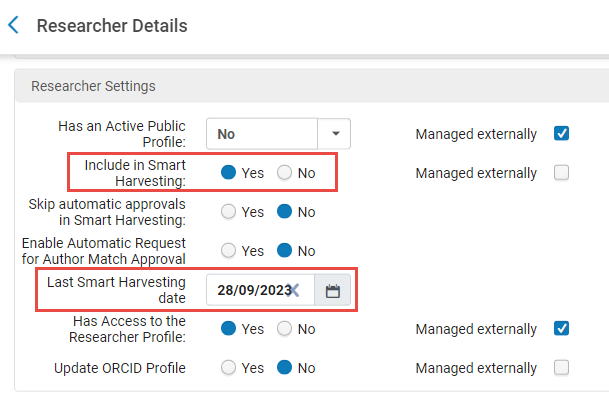
Since it is possible to manually or bulk update the Last Smart Harvesting Date, a check was added - if the date is more than 3 years in the past, Ongoing Smart Harvesting will not run for the researcher. The check is performed by year and not days. As an example, if we are currently in June 2022 and the date in the record is February 2019, Smart Harvesting will be run, but if the date in the record is December 2018, it will not be run. In this latter case, the job report will contain an event of type Skipped Researcher with the description Last Smart Harvesting date is too old.
The Skip automatic approvals in Smart Harvesting flag was added in case there are specific researchers who are problematic in terms of Smart Harvesting – for example, if you have two researchers with the same name who work in the same department or research domain, the algorithm will have a very hard time distinguishing them. Therefore, if you want to automatically approve author-researcher matches in general, such as those that are a Very Strong match for most researchers but are problematic for specific ones, you can disable the option for the problematic researchers by turning this flag on for them.
To create a set:
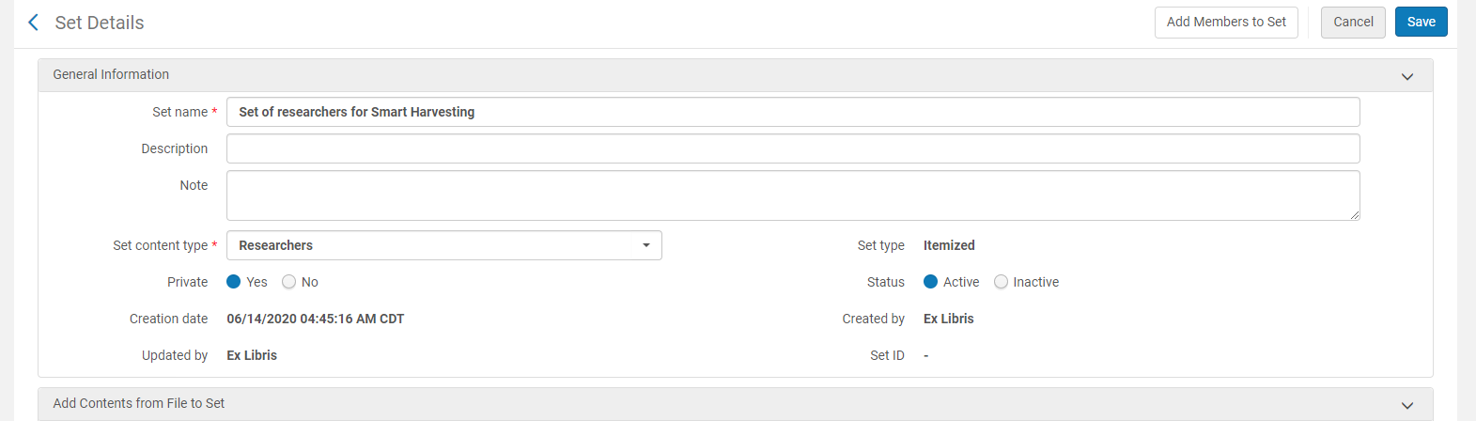
- Access the Admin > Manage Jobs and Sets > Manage Sets option. Add a new set of type "Itemized". The Set content type should be Researchers.
.png?revision=1)
- Click on the option Add Members to Set. This will display the list of researchers.
- Search for and select the researchers you want to add by selecting the Add Members to Set option. There can be up to 50 researchers per set.
- Click Save.
Running the Smart Harvesting Job Ad Hoc on a Set of Researchers
- Access the Smart Harvesting profile: Repository > Smart Harvesting > Manage Profiles. Enable and edit the Central Discovery Index profile.
- Edit the profile via the row actions button and enable the profile by setting it to Active.
- Leave the information in the General Details section as is - do not edit this section.
- In the Asset Approval section, select the relevant option:
- Never automatically approve the asset - The asset is never approved. Operators must approve before the asset will display in the public portal and profiles (similar to a manual deposit).
- Always approve the asset when the first author is approved - This option is selected by default.
- Conditionally approve the asset when the first author match is approved - The asset is approved only if the specified conditions are met. The following conditions are possible:
- If asset type is any of: Multiple asset types can be selected.
AND/OR - If asset has a DOI or PMID
- If asset type is any of: Multiple asset types can be selected.
Author matching tasks are created for all asset authors. Assets that are pending approval can be approved in the task list at Repository > Author Matching Approval Task List and in the Asset Approval page at Repository > Smart Harvesting > Asset Approval (see here for more information). In addition, these assets can be accessed via the Smart Expansion via CSV – Asset approval task in the Tasks Widget (see Managing Widgets).
- Enter the information for the Author Matching Approval Configuration section. In this section you can determine per rank (Matched on ID, Very Strong, etc.) if the author-researcher match (for each author) should be automatically approved or not. Keep in mind that as soon as one author is approved (manually or automatically), the asset may be approved (depending on what option was selected in the Asset Approval section). In the first runs you may prefer to not automatically approve regardless of rank.
The options for each rank are:
- Automatic – Automatically approve matches with this rank (unless Skip automatic approvals in Smart Harvesting is selected in the researcher's profile; see Working with Researchers).
- Administrator – Add matches with this rank to the Author Matching Approval Task List for manual handling by an administrator (see Author Matching Approval Task List).
- Selected Researchers – Automatically send requests for match approval to all researchers who have the Enable Automatic Request for Author Match Approval selected in their profiles (see Working with Researchers). Once the requests have been sent out, the flow is the same as when an administrator requests researcher approval via the Author Matching Task list (see Author Matching Approval Task List). Matches for researchers whose profiles do not have the Enable Automatic Request for Author Match Approval selected in their profiles default to requiring approval by an administrator.
The Selected Researchers option is probably most useful for ongoing Smart Harvesting, when relatively few outputs are found for each researcher. Nonetheless, it can be used for retrospective Smart Harvesting as well, if desired.
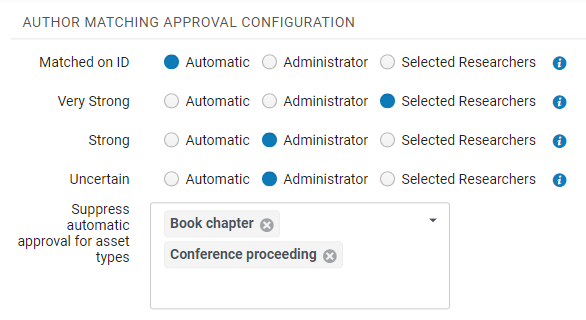
It is possible to define automatic approval but suppress it for one or more asset types. This is useful if you feel that specific asset types have problematic metadata and you want to review them before they are automatically added to the repository. For example, you can configure the Smart Harvesting profile to automatically approve "Very Strong" author matches for all asset types except for book chapters and conference proceedings. Select the asset types for which you want to suppress automatic approval under Suppress automatic approval for asset types.
- In the Run section, under Select set of researchers, select the researcher or set of researchers for which you want to run the Smart Harvesting job.

- Select the Notify Researchers checkbox in order to notify researchers about new assets that were added to their profile. Note that this option is only enabled when the NEW ASSETS ADDED TO RESEARCHER PROFILE NOTIFICATION job is active. See New Research Outputs Added to Profile Letter.
- Select Run Now. The job begins to run.
When Selected Researchers is selected for any of the ranks that appear in the Author Matching Approval Configuration section (see the Author Matching Approval Configuration above), a confirmation message appears when you select Run Now. Select Confirm to run the job.
See also Initial and Ongoing Smart Harvesting and Last Smart Harvesting Date.
For information on manually approving imported assets or referring them to the researcher for approval, see Author Matching Approval Task List.
Running Ongoing Smart Harvesting
After running the initial Smart Harvesting job, you can schedule jobs on an ongoing basis to harvest new assets for the researcher. The job runs daily, but updates each specific researcher once a week, based on the "Last Smart Harvesting Date" field.
Select Configuration menu > General > Research Jobs Configuration.
_(1).png?revision=1)
To activate the ongoing job, select Active and then Save.
To run the job immediately, select the Run Now button.
See also Initial and Ongoing Smart Harvesting and Last Smart Harvesting Date.
For information about setting up ongoing Smart Harvesting via a scheduled job, watch the How to Set Up Ongoing Smart Harvesting video (3:42).
Monitoring Ongoing Smart Harvesting
You can monitor the running of the job via Monitor Captures in Smart Harvesting Profiles (see Monitoring the Running Jobs in the Monitor Captures Page). The report and events are the same as for the ad hoc Smart Harvesting job.
You can also receive an email upon completion of the job run. Pending author matching approval tasks will be listed in the tasks widget.
In order to receive an email notification for the job run status, add your email to the list that can be accessed via Admin > Manage Jobs and Sets > Monitor Jobs. Filter the scheduled Research jobs and run Email notifications from the Smart Harvesting ("New") actions. Adding an email requires the Administrator role.
.png?revision=1)
The email indicates how many "records" were processed. These are the number of researchers for whom ongoing Smart Harvesting was run. The email also includes job events – the same events as the ad hoc job. The events indicate the number of researchers for which the job ran and for how many researchers with matching candidate assets were found. If this number is greater than 0 – new assets have been added and there may be pending author matching tasks.
Monitoring the Running Jobs in the Monitor Captures Page
This page displays a list of the Smart harvesting job runs, and can be accessed from Repository > Smart Harvesting > Manage Profiles by selecting Monitor Captures.
There are six jobs that run and are displayed in the Monitor Captures page. All jobs should be completed before access to the approval tasks list.
.png?revision=1)
The Status column displays the status of the currently running job. When the job finishes and the next job starts, the status of the next job is displayed.
The operator that invoked the Smart Harvesting run should get an email with a job report (see Job Report), once all the jobs have finished running. Once the job has been completed the author matching approval tasks for the captured assets can be displayed in the Author Matching Approval Task List (see here for more information).
Job Report
To view the report, in the Monitor Captures page, select View from the row actions menu, or select the job name.
.png?revision=1)
The following information is available as "events":