

360 Core: E-Journal Portal Administration Console
|
- Product: 360 Core Client Center
How do I configure the E-Journal Portal using the Administration Console?
Using the Administration Console, you can easily configure your library's E-Journal Portal to fit the needs of your patrons. For information about the functionality and installation of the E-Journal Portal, please read the E-Journal Portal User Guide.
To go to the 360 Core Administration Console:
- Go to Intota or the Client Center (whichever platform your library uses).
- Click the Administration Console link.
View of Intota:

View of the Client Center:

View of the Client Center:
If you do not see an E-Journal Portal / 360 Core Administration Console link, your user account likely needs permissions for doing this customization work. Depending on your current permissions you may be able to edit permissions yourself: Intota users click here; Client Center users click here.
In Intota or the Client Center you will then see the Administration Console, with the E-Journal Portal tab selected, and the Languages page open:
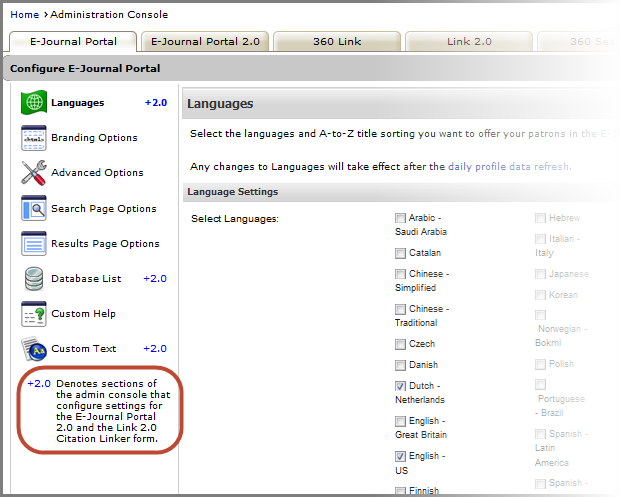
Note the +2.0 icon that indicates the admin page applies to the enhanced E-Journal Portal 2.0 in addition to Legacy E-Journal Portal. Libraries using E-Journal Portal 2.0 will also want to consider customization options on the E-Journal Portal 2.0 tab of the administration console.
There are several areas of E-Journal Portal customization; click on a title below to go to a document describing how to configure that option:
E-Journal Portal tab
Languages (+2.0)
Database List (+2.0)
Custom Text (+2.0)
E-Journal Portal 2.0 tab (For libraries using the enhanced 2.0 interface)
E-Journal Portal 2.0 Activation and Configuration
Branding Options
Search Page Options
Results Page Options
Mobile Settings
Branding Options
Search Page Options
Results Page Options
Mobile Settings
- Date Created: 9-Feb-2014
- Last Edited Date: 29-Jul-2016
- Old Article Number: 7086